{
"schema_version": 2,
"id": "operate/rc/api/get-started/manage-api-keys",
"title": "Manage API keys",
"url": "https://redis.io/docs/latest/operate/rc/api/get-started/manage-api-keys/",
"summary": "How to use the Redis Cloud console to create and manage API user keys for your account's team owners",
"tags": [
"docs",
"operate",
"rc"
],
"last_updated": "2026-10-05T10:59:52+01:00",
"page_type": "content",
"content_hash": "90180899102b860912f7dc7f67ab4867551834ace53db7a1dae859fff1586c93",
"sections": [
{
"id": "overview",
"title": "Overview",
"role": "overview",
"text": "Every REST API request must include the following API keys:\n\n1. The **Account key** identifies the account associated with the Redis Cloud subscription.\n\n2. The **User key** identifies the user and (optionally) the context of a request. Generated by account owners.\n\nUse the **API Keys** tab of the **Access Management** screen to manage your keys:\n\n1. Sign in to your [Redis Cloud account](https://cloud.redis.io) as an account owner.\n\n1. From the menu, choose **Access Management** and then select the **API Keys** tab.\n\n 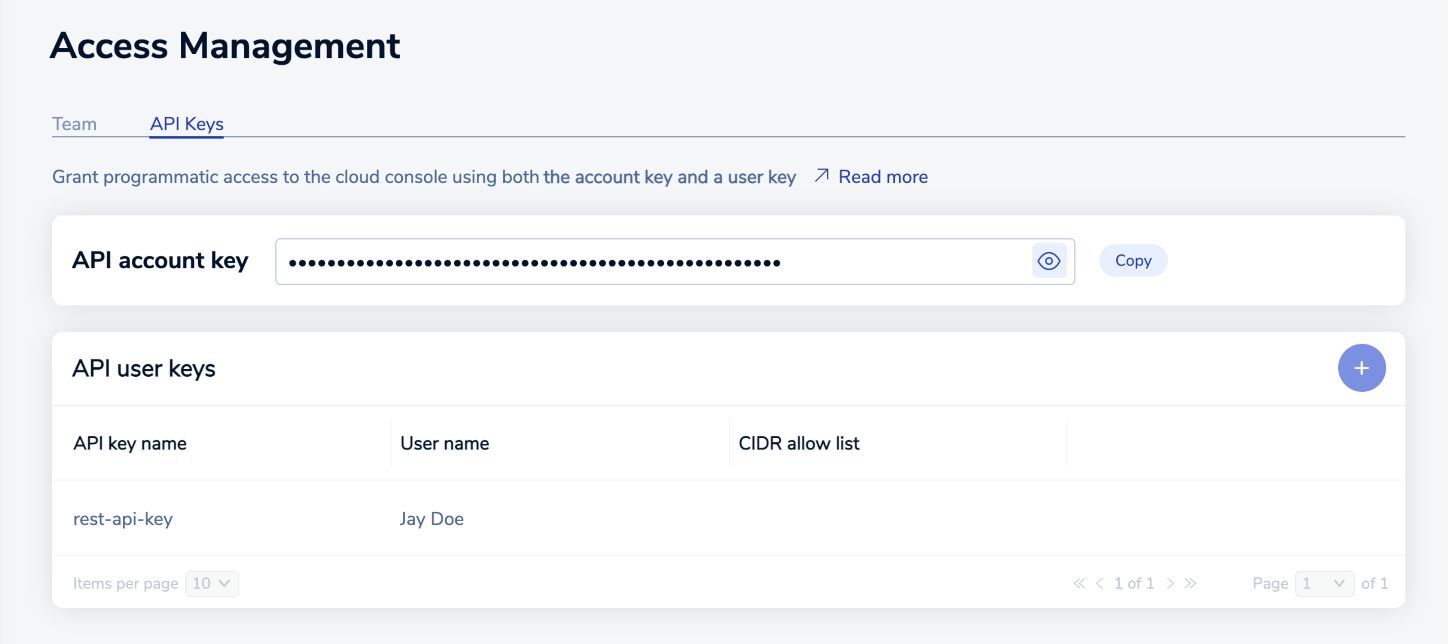\n\nIf an **Enable API** button appears, select it to [enable the REST API](https://redis.io/docs/latest/operate/rc/api/get-started/enable-the-api) for your account.\n\n"
},
{
"id": "api-account-key",
"title": "API account key",
"role": "content",
"text": "The **API account key** is used as the value of the `x-api-key` HTTP header in order to authenticate a REST API request.\n\nBy default, the **API account key** is masked; that is, it is obscured for security reasons. You can use the **Show** button to display the key and the **Hide** button to mask it.\n\n \n\nThe **Copy** button copies the account key to the Clipboard.\n\n"
},
{
"id": "api-user-keys",
"title": "API user keys",
"role": "content",
"text": "**API user keys** (also known as _secret keys_) are used as the value of the `x-api-secret-key` HTTP header used to authenticate a REST API request.\n\nIn this context, _user_ refers to the account used to sign in to the Redis Cloud console. Users must have an owner (read-write), billing admin (read-write for billing tasks), viewer (read-only), or logs viewer (read-only for logs).\n\nUsers can have more than one user key; however, users should not share user keys."
},
{
"id": "secret",
"title": "Create a new user key",
"role": "content",
"text": "Use the **Add** button to create a new user key.\n\n\n\nWhen you do this, you're prompted for the **Key name** and the associated **User name**.\n\n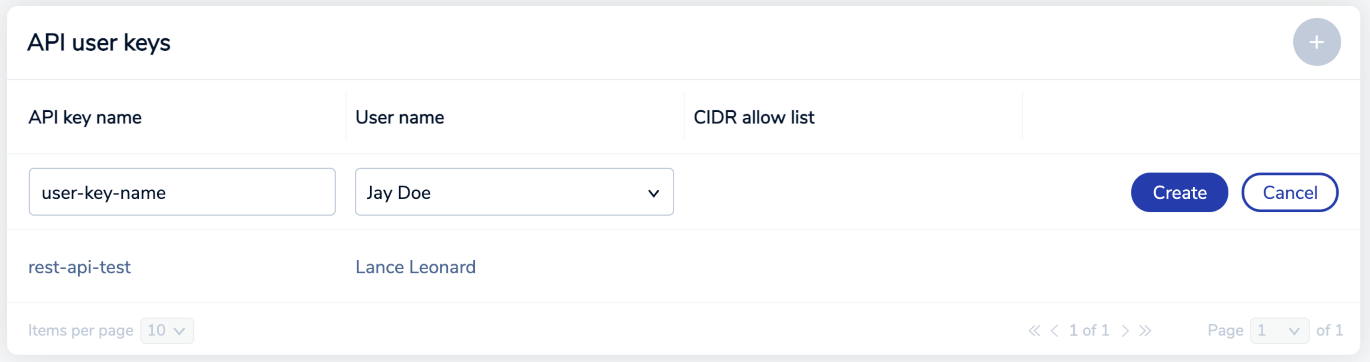\n\nThe key name:\n\n- Must be between 10 and 50 characters long\n- Can contain alphanumeric characters, hyphens, and underscores. Spaces are not allowed.\n\nThe selected user must have an owner, viewer, billing admin, or logs viewer role.\n\nSelect **Create** to create the new key. \n\n\n\nWhen you do this, the **API user key** dialog appears.\n\n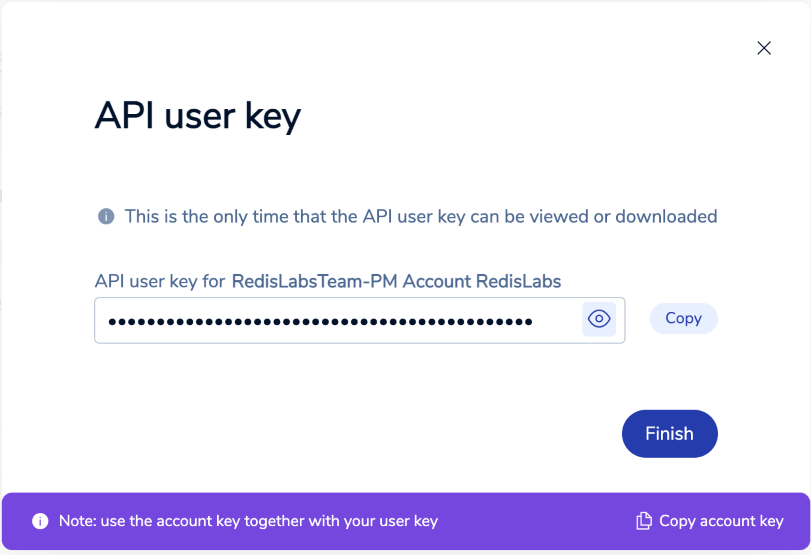\n\n> [!WARNING]\n> This is the only time the value of the user key is available. Save it to a secure location before closing the dialog box.
\n> If you lose the user key value, it cannot be retrieved. If this happens, create a new key to replace the lost one.\n\nThe **Finish** button is inactive until you copy the key to the clipboard. After you save the user key, you can also select **Copy account key** to save the account key."
},
{
"id": "delete-a-user-key",
"title": "Delete a user key",
"role": "content",
"text": "To delete a user key:\n\n1. Use the **API Keys** tab of the **Access Management** screen to locate the target key. Hover over the key to display the **Delete** button.\n\n 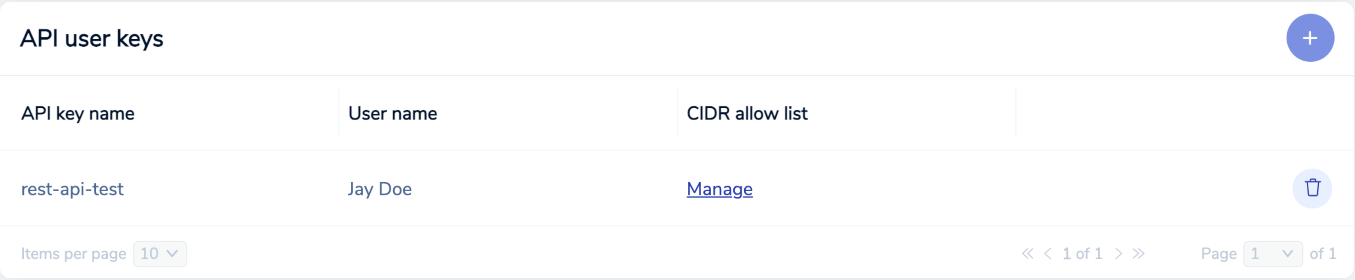\n\n2. Select the **Delete** button.\n\n \n\n3. This displays the **Delete API secret key** dialog box. \n\n \n\n Select the **Delete** button to confirm."
},
{
"id": "manage-cidr-allow-list",
"title": "Manage CIDR allow list",
"role": "content",
"text": "By default, REST API requests are allowed from all IP addresses. To limit access to specific addresses, define a CIDR allow list for the user key.\n\nTo manage the CIDR allow list:\n\n1. Use the **API Keys** tab of the **Access Management** screen to locate the target key. Hover over the key to display the **Manage** link.\n\n \n\n2. Select the **Manage** link in the **CIDR allow list** column; this displays the **Manage CIDR allow list** dialog box.\n\n \n\n3. Enter each allowed IP address in [CIDR format](https://en.wikipedia.org/wiki/Classless_Inter-Domain_Routing#CIDR_notation) (example: `127.1.0.0/24`) and then select the **Save** button.\n\n \n\n Use the **Add CIDR rule** button to add additional addresses to the list.\n\n \n\n Use the **Edit** button to change the address for a rule or the **Delete button** to remove a rule.\n\n  "
}
],
"examples": []
}