# Use the REST API
```json metadata
{
"schema_version": 2,
"title": "Use the REST API",
"description": "How to use the API with various tools (especially `cURL`)",
"categories": ["docs","operate","rc"],
"tableOfContents": {"sections":[{"children":[{"id":"authenticate-to-swagger","title":"Authenticate to Swagger"},{"id":"make-api-requests","title":"Make API requests"}],"id":"swagger-user-interface","title":"Swagger user interface"},{"id":"use-the-curl-http-client","title":"Use the cURL HTTP client"}]}
,
"codeExamples": []
}
```
You can access and use the API endpoint URI ([`https://api.redislabs.com/v1`](https://api.redislabs.com/v1/)) with any of the following tools:
- The Swagger user interface
- The cURL HTTP client
- An HTTP client in any programming language
> [!NOTE]
> For the Redis Cloud API, there is a request limit of 400 requests per minute per Account API key. If you go past this limit, your API requests will fail.
## Swagger user interface
The [Swagger UI](https://api.redislabs.com/v1/swagger-ui.html) is useful for initial introduction and for learning about API operations, models, and simulated usage.
### Authenticate to Swagger
To authenticate to the Swagger UI:
1. Open the [Swagger UI](https://api.redislabs.com/v1/swagger-ui.html) page in a browser.
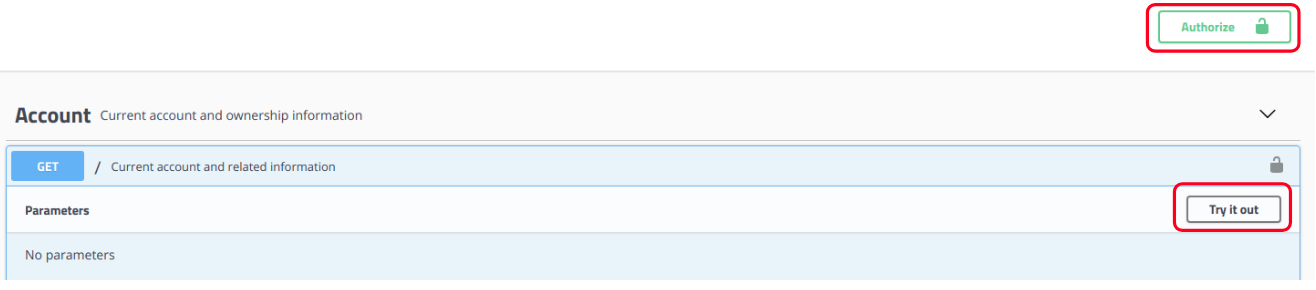
1. Select `Authorize`.
The **Available Authorizations** box is shown with the headers and values that are used for authentication in all API interactions with Swagger.
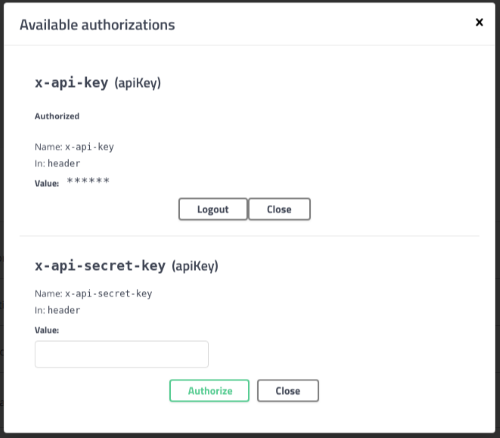
1. Insert the API Key values:
1. Enter the [Account Key](https://redis.io/docs/latest/operate/rc/api/get-started/enable-the-api) as the `x-api-key` value and then choose **Authorize**.
1. Enter the [Secret Key](https://redis.io/docs/latest/operate/rc/api/get-started/manage-api-keys) as the `x-api-secret-key` value and then choose **Authorize**.
1. Select **Close**.
> [!NOTE]
> The key values are not saved when you refresh the page.
When authorization is successful, the lock icon displays a closed lock.
### Make API requests
After you complete the authorization in the Swagger UI, you can make an API request:
1. Open an action category and select an API operation.
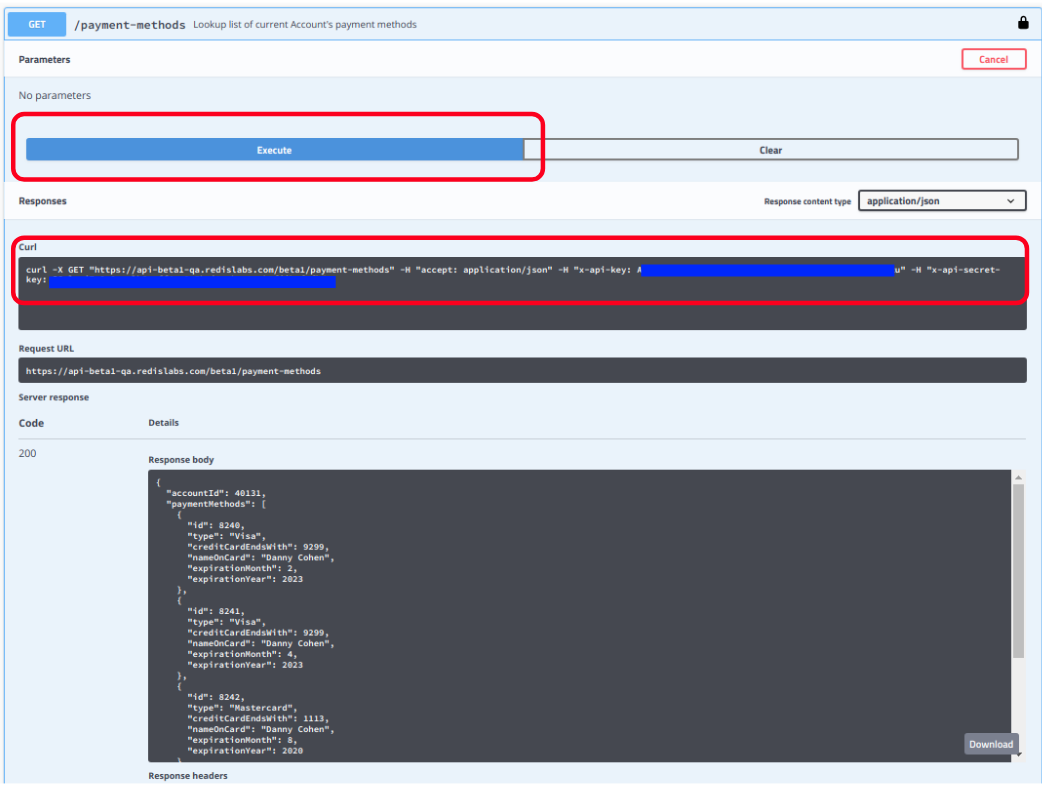
For example, in the `Account` category select the `GET /payment-methods` operation.

1. Select **Try it out** and then select **Execute**.
The API response is shown in the **Responses** section of the API operation.
The results include an example of how to execute the same operation in a standard command-line utility using `cURL`.
#### Inputs for operations in Swagger
Some API operations require input, such as:
- **Parameters** - When an API operation requires URI parameters, such as "get subscription by subscription id", you can enter the values for the parameters.
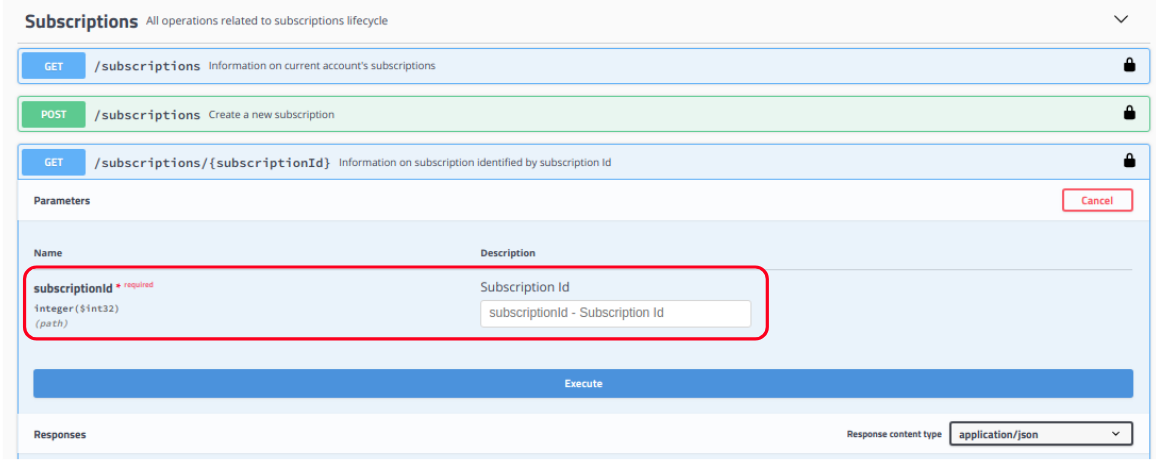
- **JSON Request Body** - For API operations that require a JSON request body, you can either:
- Use the **model display** to write the request based on the expected JSON structure and parameters.

- Use the **Try it now** sample JSON created by Swagger as a base template that you can edit and execute.

> [!WARNING]
> The Swagger UI generates default JSON examples for `POST` and `PUT` operations. You should modify these examples to suit your specific needs and account settings. The examples will fail if used as-is.
For more examples showing how to use specific endpoints, see [REST API examples](https://redis.io/docs/latest/operate/rc/api/examples).
## Use the `cURL` HTTP client
`cURL` is a popular command line tool used to perform HTTP requests,
either as individual commands or within shell scripts (such as bash and zsh).
For an introduction, see [How to start using cURL and why: a hands-on introduction](https://www.freecodecamp.org/news/how-to-start-using-curl-and-why-a-hands-on-introduction-ea1c913caaaa/).
> [!INFO]
> Our examples use `cURL` and Linux shell scripts to demonstrate the API; you can use any standard REST client or library.
> Our examples also use `jq`, [a JSON parser](https://stedolan.github.io/jq/). Use your package manager to install it (Example: `sudo apt install jq`)
For example, a standard API call to get System Log information looks like this in `cURL`:
```bash
curl -s -X GET "https://$HOST/logs" \
-H "accept: application/json" \
-H "x-api-key: $ACCOUNT_KEY" \
-H "x-api-secret-key: $SECRET_KEY" \
| jq -r .
```
- The example expects several variables to be set in the Linux shell:
- **$HOST** - The URI of the REST API host (`api.redislabs.com/v1`)
- **$ACCOUNT_KEY** - The [account key value](https://redis.io/docs/latest/operate/rc/api/get-started/enable-the-api)
- **$SECRET_KEY** - The personal [secret key value](https://redis.io/docs/latest/operate/rc/api/get-started/manage-api-keys)
- The line "`| jq -r .`" means that the HTTP response will be piped (forwarded) to the `jq` JSON parser, and it will display only the raw output ("`-r`") of the root element ("`.`")
- You can set the variables using shell commands like the following:
```shell
```