{
"schema_version": 2,
"id": "operate/rc/databases/create-database/create-pro-database-new",
"title": "Create a Pro database with a new subscription",
"url": "https://redis.io/docs/latest/operate/rc/databases/create-database/create-pro-database-new/",
"summary": "Shows how to create a Pro database with a new subscription",
"tags": [
"docs",
"operate",
"rc"
],
"last_updated": "2026-10-13T13:09:15-07:00",
"page_type": "content",
"content_hash": "cd089ad385679d2c09fd361413ca6407e589dd887a6748ed844be579830014fc",
"sections": [
{
"id": "overview",
"title": "Overview",
"role": "overview",
"text": "Redis Cloud Pro supports more databases, larger databases, greater throughput, and unlimited connections compared to Redis Cloud Essentials. Redis Cloud Pro databases are perfect for teams building mission-critical systems in the cloud.\n\nBefore creating a Redis Cloud database, you need to [create an account](https://redis.io/docs/latest/operate/rc/rc-quickstart).\n\nTo create a database in your Redis Cloud account:\n\n1. Sign in to the [Redis Cloud console](https://cloud.redis.io).\n\n2. Select the **New database** button.\n\n \n\n This displays the **Create database** screen.\n\n3. Select the type of [subscription](https://redis.io/docs/latest/operate/rc/subscriptions) you need. For this guide, select **Pro**. \n\n 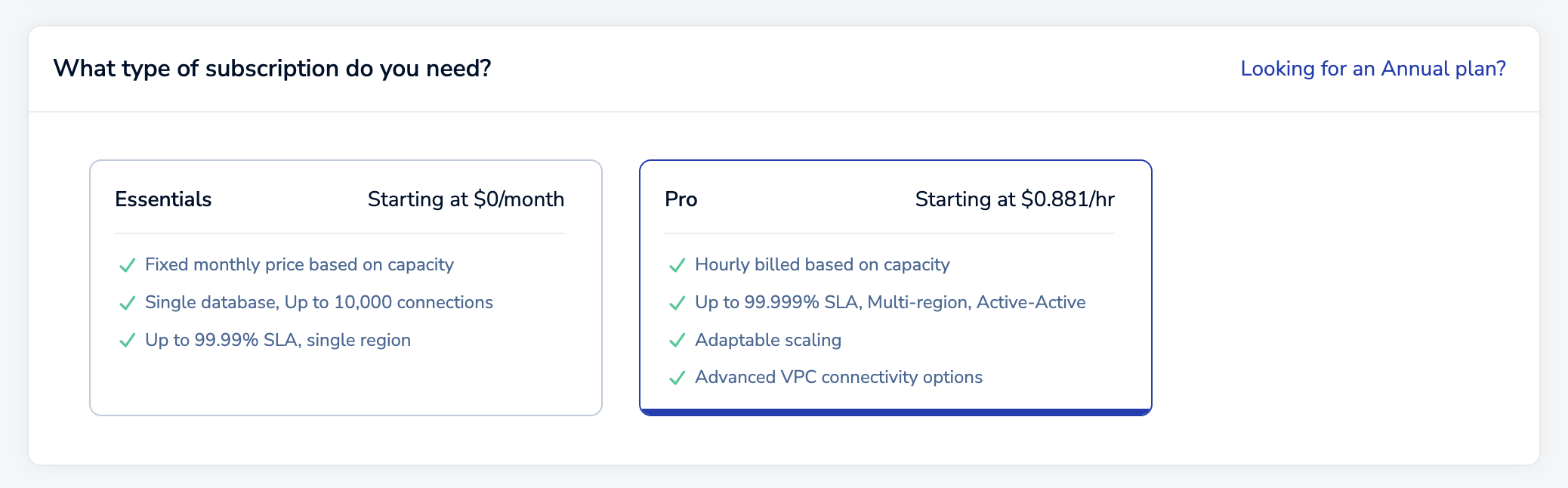\n\n > [!NOTE]\n > This guide shows how to create a Pro database with a new subscription.\n > - If you already have a Pro subscription and want to add a database to it, see [Create a Pro database in an existing subscription](https://redis.io/docs/latest/operate/rc/databases/create-database/create-pro-database-existing).\n > - If you'd rather create an Essentials database, see [Create an Essentials database](https://redis.io/docs/latest/operate/rc/databases/create-database/create-essentials-database).\n >\n \n\nAfter you select **Pro**, the **Database settings** section will appear.\n\n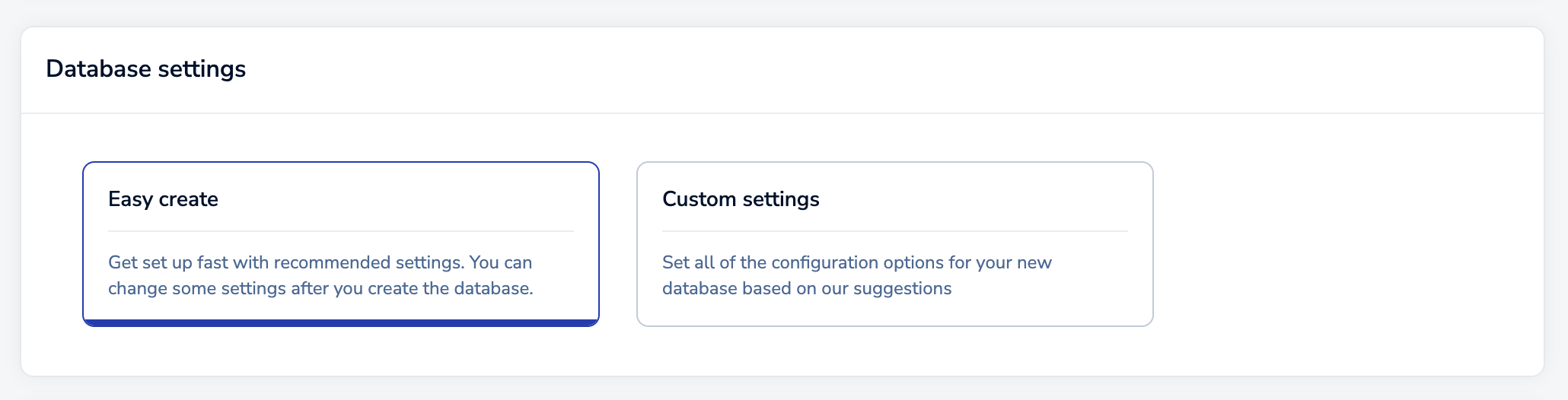\n\nYou can choose to create your database in one of two ways:\n\n- [**Easy create**](#easy-create) selects the optimal settings for you to get started faster.\n- [**Custom settings**](#custom-settings) lets you select all of the configuration options for your new database."
},
{
"id": "easy-create",
"title": "Create database with Easy create",
"role": "content",
"text": "If you choose to create your database with Easy create:\n\n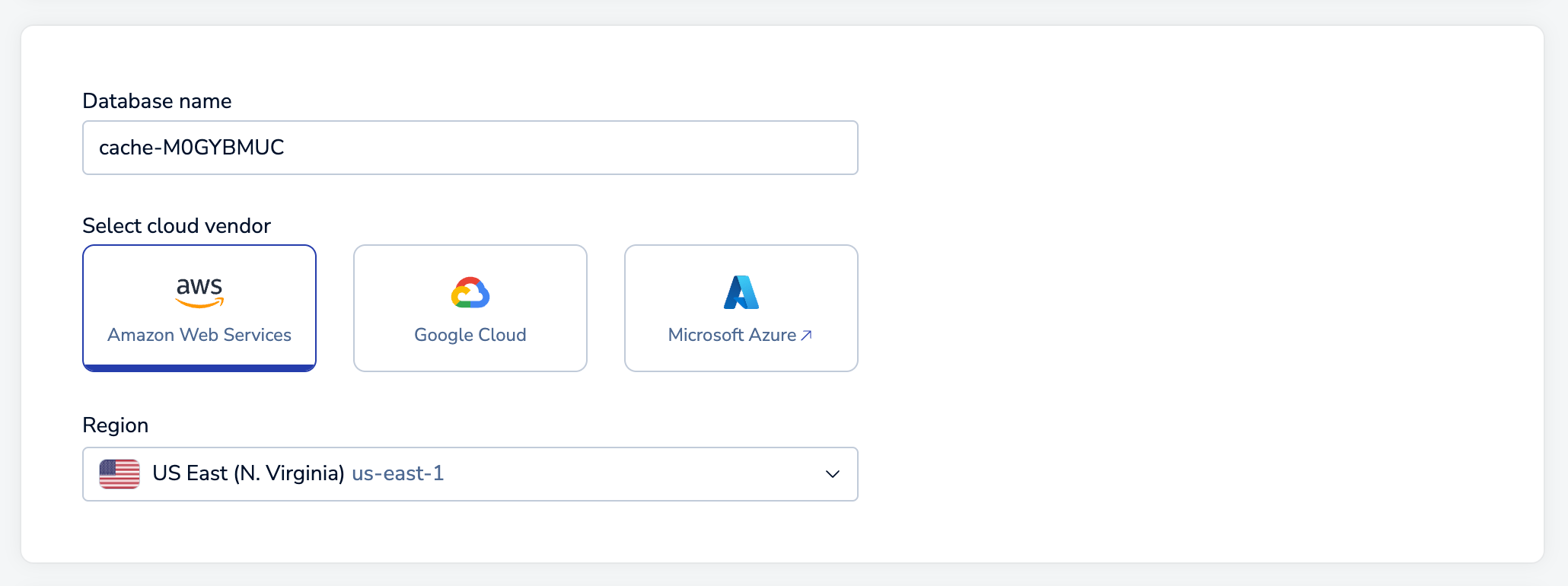\n\n1. Choose a **Cloud Provider** and a **Region**.\n\n1. Enter the following settings for your database:\n\n 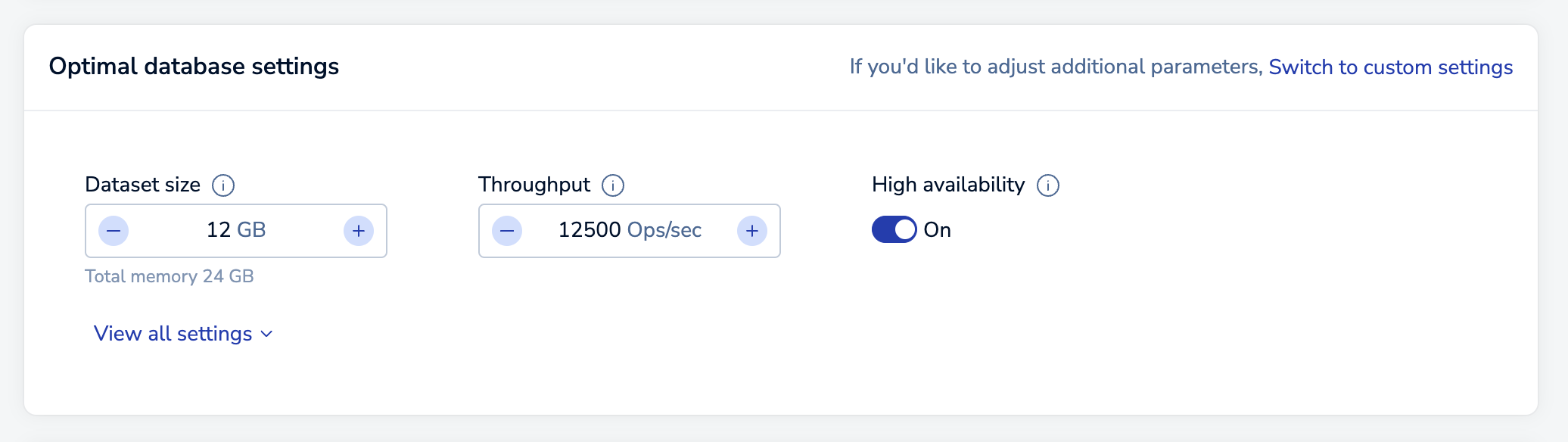\n\n | Database setting | Description |\n |:---------|:-----------|\n | **Name** | The name for your database. Redis will generate a database name for you, but you can change it at any time. |\n | **Dataset size (GB)** | The amount of data for your dataset. See [Dataset size](https://redis.io/docs/latest/operate/rc/databases/configuration/sizing#dataset-size) for sizing considerations.
Databases with Search and query have specific sizing requirements, see [Search and query sizing](https://redis.io/docs/latest/operate/rc/databases/configuration/advanced-capabilities#search-and-query-sizing) for more information. |\n | **Throughput** | Identifies maximum throughput for the database, which is specified in terms of operations per second (**Ops/sec**). See [Throughput](https://redis.io/docs/latest/operate/rc/databases/configuration/sizing#throughput) for more information.
Databases with Search and query have specific throughput requirements, see [Search and query sizing](https://redis.io/docs/latest/operate/rc/databases/configuration/advanced-capabilities#search-and-query-sizing) for more information. |\n | **High Availability** | Indicates whether a replica copy of the database is maintained in case the primary database becomes unavailable. (Warning: doubles memory consumption). See [High Availability](https://redis.io/docs/latest/operate/rc/databases/configuration/high-availability). |\n\n1. Select **View all settings** to review the database settings that we selected for you.\n\n 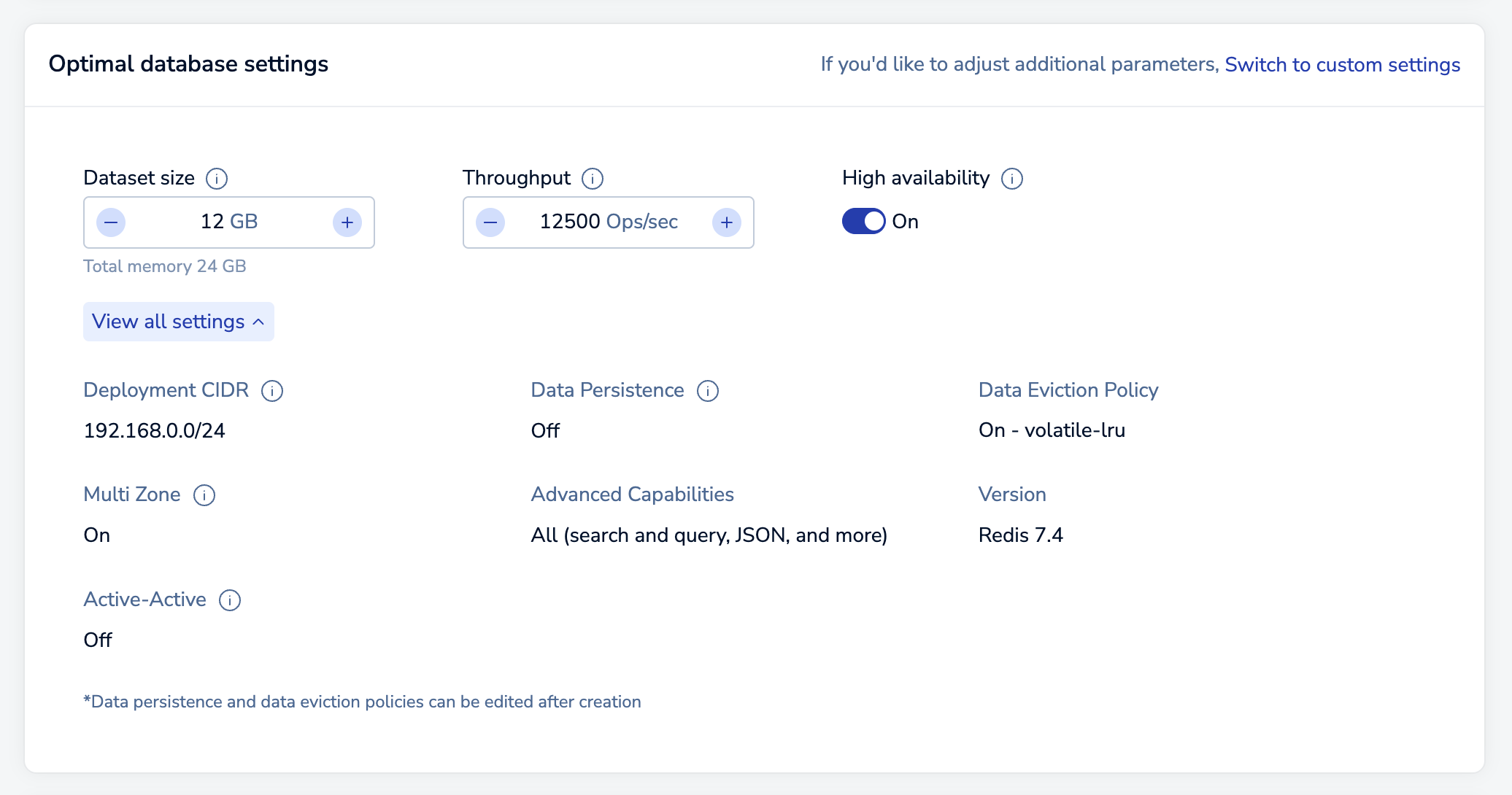\n\n If you want to change these settings, select [**Switch to custom settings**](#custom-settings).\n\n1. Enter your payment details.\n\n If you haven't previously entered a payment method, use the **Add Credit Card** button to add one.\n\n \n\n If you have not already added a business address to your account, you must enter one. Redis uses your business address for communication, invoicing, and tax purposes.\n\n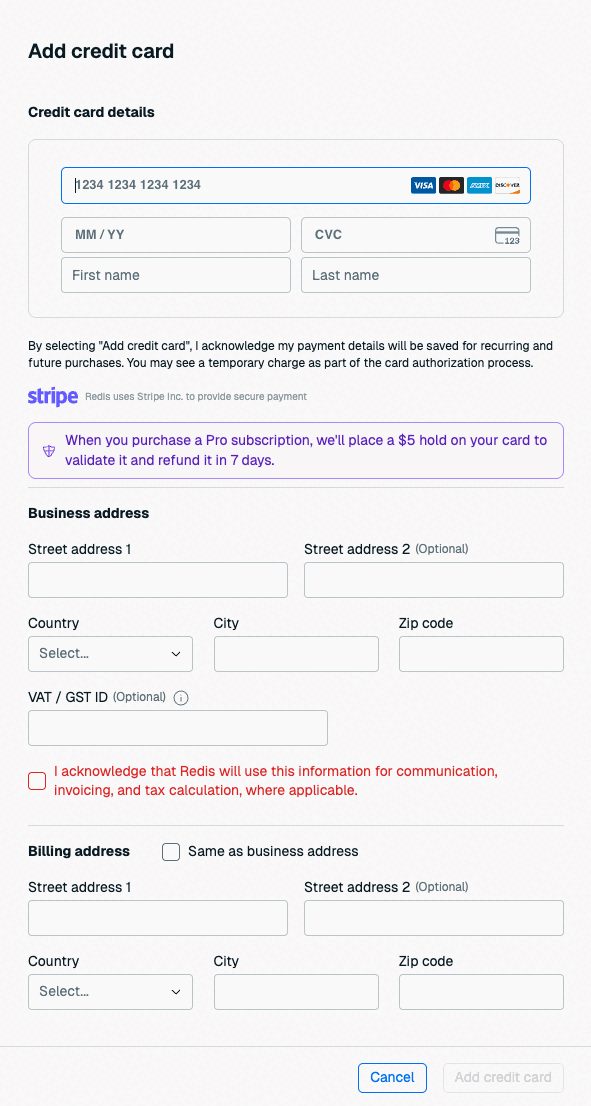\n\nIf you already have a business address, you don't need to enter one here. See [Account settings](https://redis.io/docs/latest/operate/rc/accounts/account-settings) to learn how to update your business address.\n\n\n\nIf the card's billing address is the same as your account's business address, select **Same as business address** to fill the billing address with your business address details.\n\n Select **Confirm & pay** to create your database.\n\n\n\nNote that databases are created in the background. While they are provisioning, you aren't allowed to make changes. This process generally takes 10-15 minutes.\n\nUse the **Database list** to check the status of your databases."
},
{
"id": "custom-settings",
"title": "Create database with Custom settings",
"role": "content",
"text": "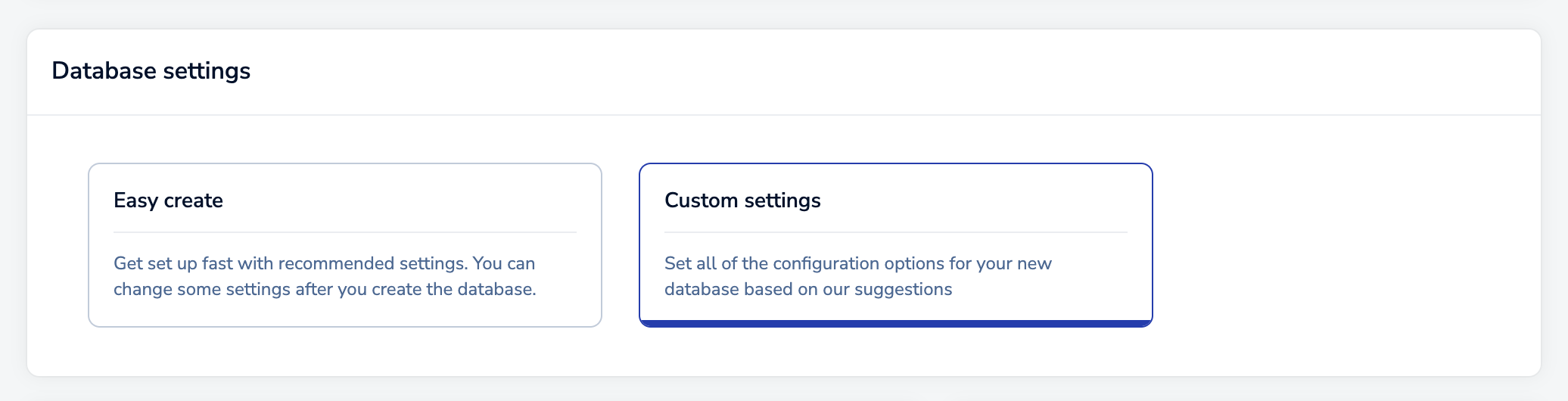\n\nIf you choose to create your database with custom settings, you need to:\n\n1. Set up the deployment options, including cloud vendor details, high availability settings, and advanced options.\n\n2. Define the database size requirements.\n\n3. Review your choices, provide payment details, and then create your databases.\n\nThe following sections provide more information."
},
{
"id": "set-up-deployment-details",
"title": "Set up deployment details",
"role": "content",
"text": "The **Setup** tab specifies general settings for your Redis deployment.\n\n\n\nThere are two sections on this tab:\n\n- [General settings](#general-settings) include the cloud provider details and specific configuration options.\n- [Advanced options](#advanced-options) define settings for high availability and security. Configurable settings vary according to cloud provider.\n\n#### General settings {#general-settings}\n\n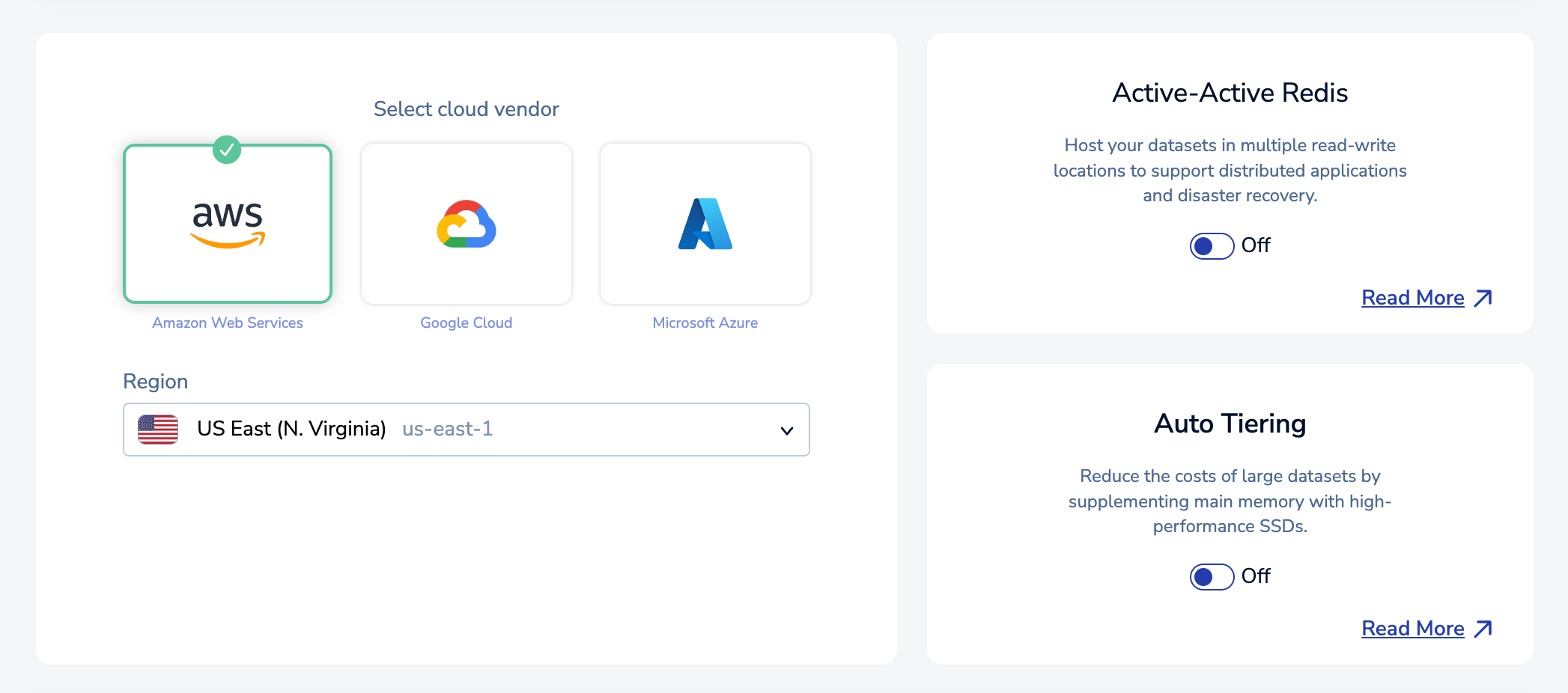\n\nIn the General settings of the **Setup** tab, you need to:\n\n1. Select the public **Cloud vendor** to deploy your databases.\n\n1. Select the **Region** where you want to deploy your database. \n\n > [!NOTE]\n > This guide is for single region database deployment. If you want to create a multi-region Active-Active database, see [Create an Active-Active database](https://redis.io/docs/latest/operate/rc/databases/active-active/create-active-active-database) for specific steps and configuration options exclusive to Active-Active.\n >\n\n#### Advanced options {#advanced-options}\n\n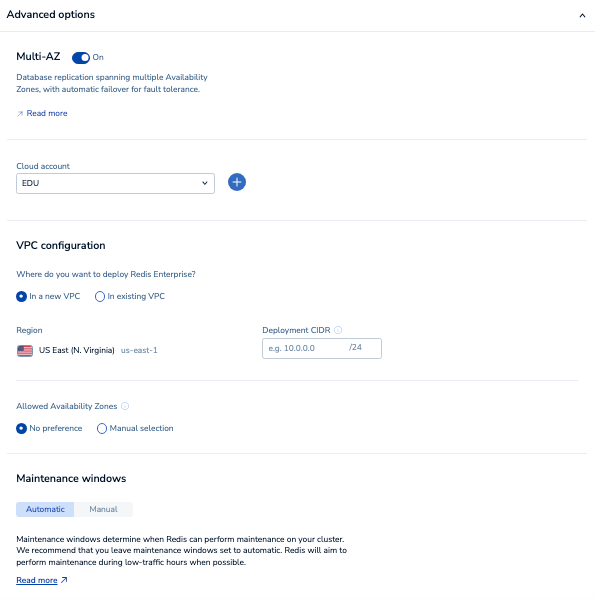\n\nThe following settings are defined in the **Advanced options** of the **Setup** tab:\n\n| Advanced option | Description |\n|---|---|\n| **Redis Flex** | Determines if your databases are stored only in memory (RAM) or are split between memory and Flash storage (RAM+Flash). See [Redis Flex](https://redis.io/docs/latest/operate/rc/databases/create-database/create-flex-database) for more information. |\n| **BYOC account** | To deploy these databases to an existing cloud account, select it here. Use the **Add** button to add a new cloud account.
(Available only if [Redis Cloud Bring your own Cloud](https://redis.io/docs/latest/operate/rc/subscriptions/bring-your-own-cloud) is enabled) |\n| **AWS Resource tags** | Applies resource tags to the infrastructure deployed to your BYOC account. See [Resource tags](https://redis.io/docs/latest/operate/rc/subscriptions/bring-your-own-cloud/resource-tags) for more information.
(Available only if [Redis Cloud Bring your own Cloud](https://redis.io/docs/latest/operate/rc/subscriptions/bring-your-own-cloud) is enabled) |\n| **Multi-AZ** | Determines if replication spans multiple Availability Zones, which provides automatic failover when problems occur. See [High Availability](https://redis.io/docs/latest/operate/rc/databases/configuration/high-availability). |\n| **VPC configuration** | Select **In a new VPC** to deploy to a new [virtual private cloud](https://en.wikipedia.org/wiki/Virtual_private_cloud) (VPC).
To deploy these databases to an existing virtual private cloud, select **In existing VPC** and then set VPC ID to the appropriate ID value.
(Available only if [Redis Cloud Bring your own Cloud](https://redis.io/docs/latest/operate/rc/subscriptions/bring-your-own-cloud) is enabled and you have selected an existing BYOC account) |\n| **Allowed Availability Zones** | The availability zones for your selected region.
If you choose **Manual selection**, you must select at least one zone ID from the **Zone IDs** list. For more information, see [Availability zones](https://redis.io/docs/latest/operate/rc/databases/configuration/high-availability#availability-zones). |\n| **Deployment CIDR** | The [CIDR](https://en.wikipedia.org/wiki/Classless_Inter-Domain_Routing) range of IP addresses for your deployment. Redis creates a new [subnet](https://en.wikipedia.org/wiki/Subnetwork) for the **Deployment CIDR** in your [virtual private cloud](https://en.wikipedia.org/wiki/Virtual_private_cloud) (VPC). It cannot overlap with the CIDR ranges of other subnets used by your account.
For deployments in an existing VPC, the **Deployment CIDR** must be within your VPC's **primary** CIDR range (secondary CIDRs are not supported). |\n| **Public endpoint access** | Select whether or not to [block public endpoints](https://redis.io/docs/latest/operate/rc/security/database-security/block-public-endpoints) for all databases in the subscription. |\n| **Persistent storage encryption** | Select whether to encrypt persistent storage with a Cloud-provider managed key or a [self-managed encryption key](https://redis.io/docs/latest/operate/rc/security/manage-encryption-keys). If you select **Customer managed key**, you'll get clear instructions to provide access to your self-managed key after you set up your database(s). See [Grant key permissions](https://redis.io/docs/latest/operate/rc/security/manage-encryption-keys#grant-key-permissions) for more information. |\n| **Maintenance windows** | Determines when Redis can perform [maintenance](https://redis.io/docs/latest/operate/rc/subscriptions/maintenance) on your databases. Select **Manual** if you want to set [manual maintenance windows](https://redis.io/docs/latest/operate/rc/subscriptions/maintenance/set-maintenance-windows). |\n\nWhen finished, choose **Continue** to determine your size requirements.\n\n"
},
{
"id": "sizing-tab",
"title": "Sizing tab",
"role": "content",
"text": "The **Sizing** tab helps you specify the database, memory, and throughput requirements for your subscription.\n\n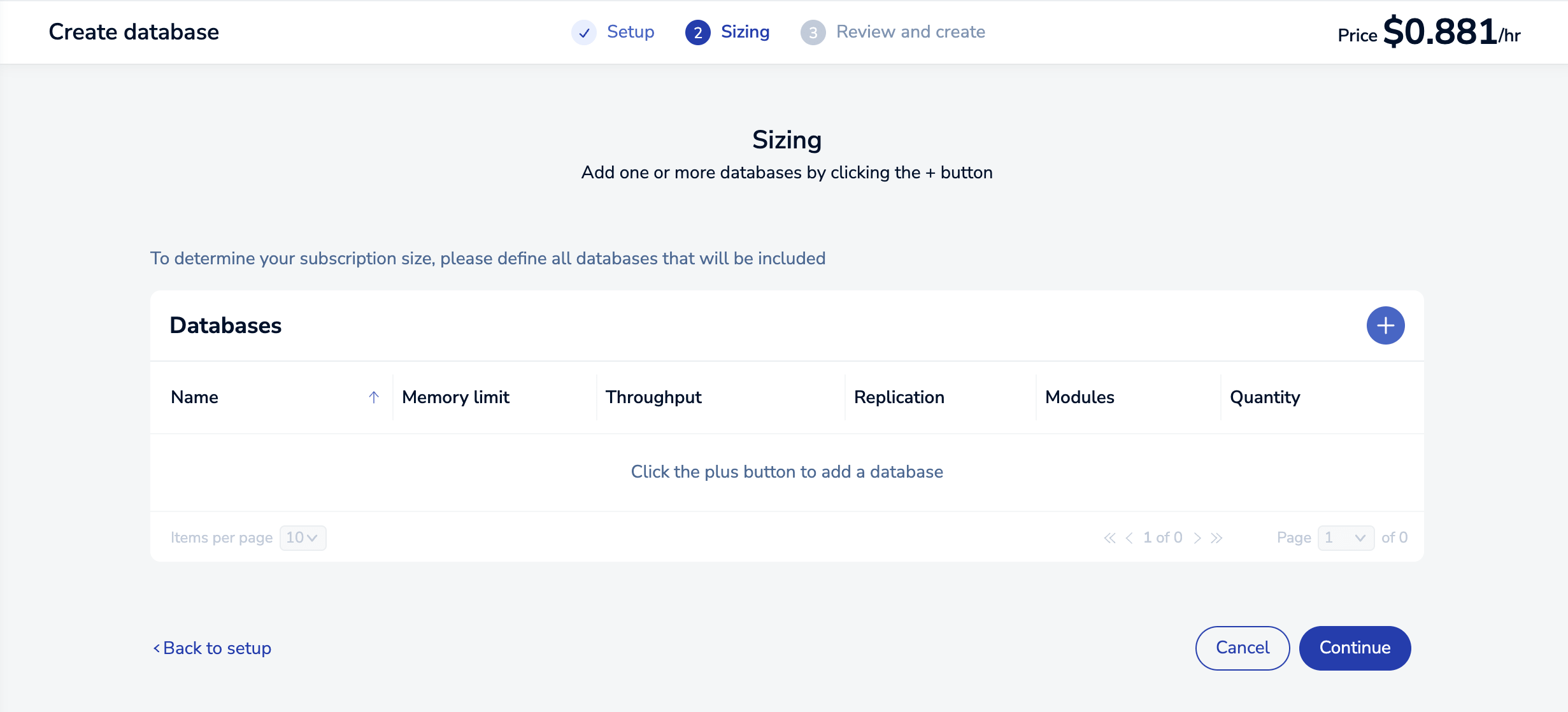\n\nWhen you first visit the **Sizing** tab, there are no databases defined. Select the **Add** button to create one.\n\n\n\nThis opens the **Database configurations** dialog, which lets you define the requirements for your new database.\n\n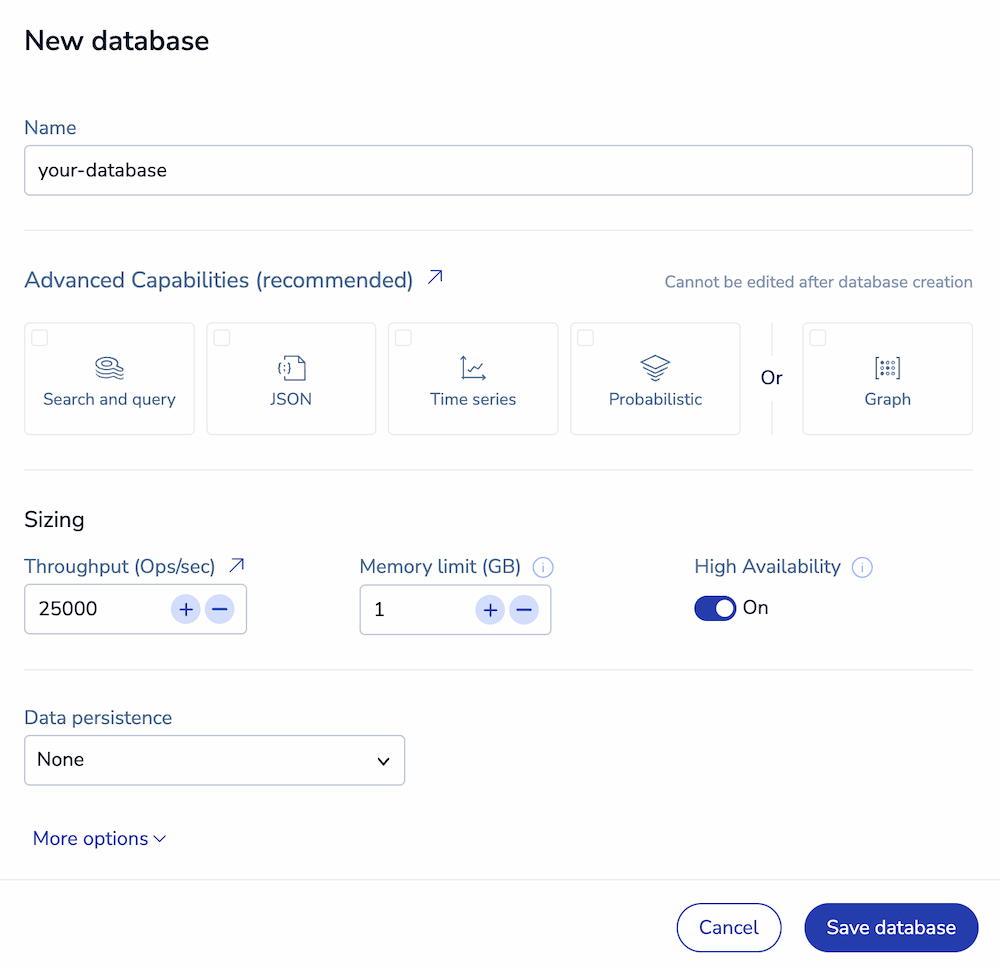\n\nBy default, you're shown basic settings, which include:\n\n| Database setting | Description |\n|:---------|:-----------|\n| **Name** | Redis Cloud generates a database name for you, but you can change it at any time. |\n| **Version** | The Redis version for your database. We recommend you choose the latest available version. See [Redis version management](https://redis.io/docs/latest/operate/rc/databases/version-management) for more information. |\n| **Dataset size (GB)** | The amount of data for your dataset. Specify small sizes as decimals of 1.0 GB; example: `0.1` GB (minimum). We calculate the total memory limit for you based on the other settings you choose for your database.
Databases with Search and query have specific sizing requirements, see [Search and query sizing](https://redis.io/docs/latest/operate/rc/databases/configuration/advanced-capabilities#search-and-query-sizing) for more information. |\n| **High Availability** | Indicates whether a replica copy of the database is maintained in case the primary database becomes unavailable. (Warning: Doubles memory consumption). See [High Availability](https://redis.io/docs/latest/operate/rc/databases/configuration/high-availability). |\n| **Throughput** | Identifies maximum throughput for the database, which is specified in terms of operations per second (**Ops/sec**). See [Throughput](https://redis.io/docs/latest/operate/rc/databases/configuration/sizing#throughput) for more information.
Databases with Search and query have specific throughput requirements. See [Search and query sizing](https://redis.io/docs/latest/operate/rc/databases/configuration/advanced-capabilities#search-and-query-sizing) for more information. |\n| **Hashing policy** | Determines how data is distributed across multiple Redis processes of a database. Available options depend on your account creation date. See [Clustering](https://redis.io/docs/latest/operate/rc/databases/configuration/clustering#manage-the-hashing-policy) for more information. |\n| **Query performance factor** | *(Search and query databases on Redis 7.2 or later only)* Adds additional compute power to process your query and vector search workloads and boost your queries per second. See [Search and query sizing](https://redis.io/docs/latest/operate/rc/databases/configuration/advanced-capabilities#search-and-query-sizing) for more information. |\n| **Data Persistence** | Defines the data persistence policy, if any. See [Data persistence](https://redis.io/docs/latest/operate/rc/databases/configuration/data-persistence). |\n\nSelect **More options** to specify values for the following settings.\n\n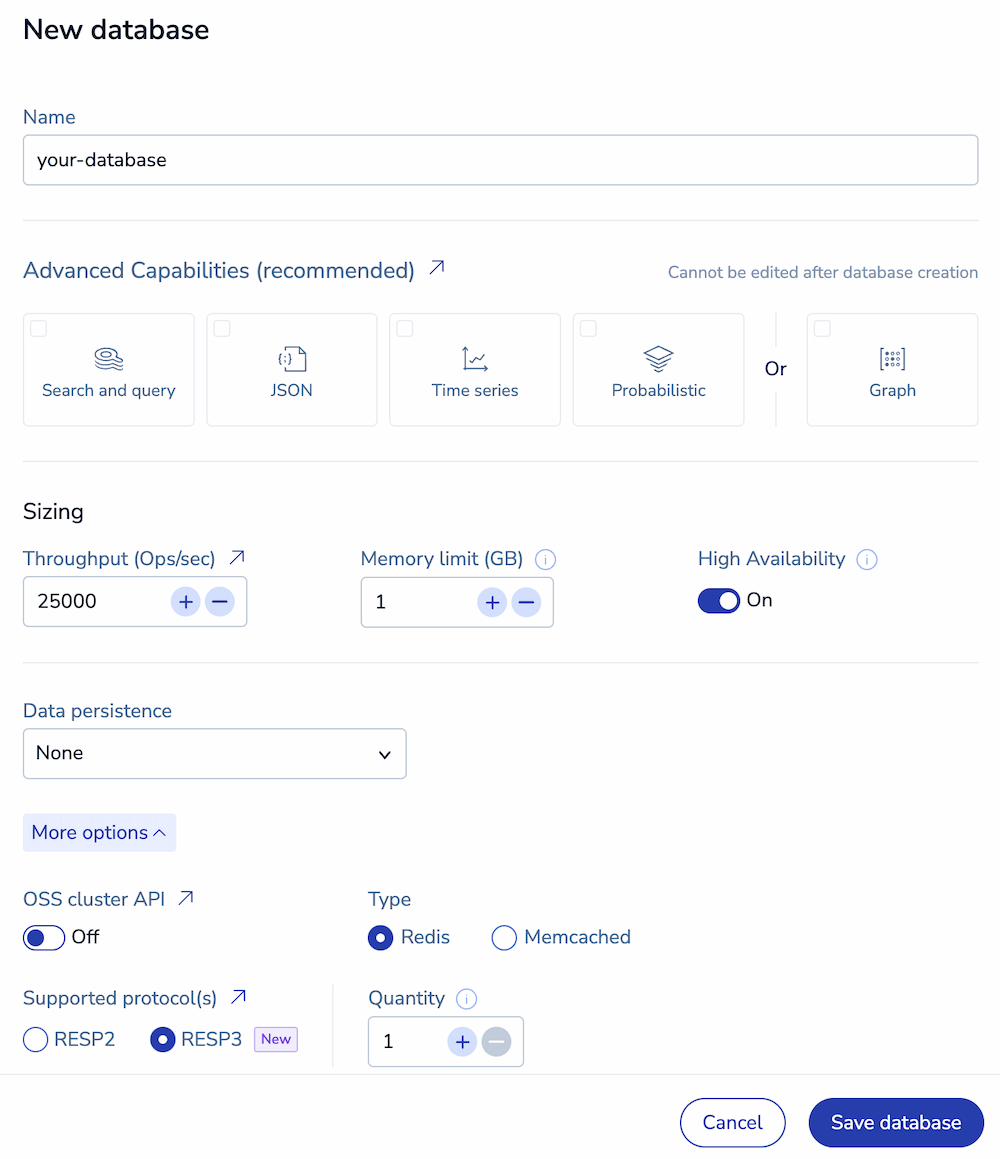\n\n| Database option | Description |\n|:---------|:----------------------------------------------------------------------------------------------------------------------------------------------------------------|\n| **Advanced Capabilities** | [Advanced features and data types](https://redis.io/docs/latest/operate/rc/databases/configuration/advanced-capabilities) used by the database. Starting with Redis 8.0, all advanced capabilities are included in Redis by default. |\n| **OSS Cluster API** | Enable to use the [OSS Cluster API](https://redis.io/docs/latest/operate/rc/databases/configuration/clustering#oss-cluster-api). |\n| **Type** | Set to **Redis**, otherwise **Memcached** database for legacy database support. |\n| **Supported Protocol(s)** | Choose between RESP2 and RESP3 _(Redis 7.2 and later only)_. See [Redis serialization protocol](https://redis.io/docs/latest/develop/reference/protocol-spec#resp-versions) for details |\n| **Quantity** | Number of databases to create with these settings. |\n\nWhen finished, select **Save configuration** to save your database configuration.\n\n\n\nUse the **Add database** button to define additional databases or select the **Continue button** to display the **Review and create** tab.\n\nHover over a database to see the **Edit** and **Delete** icons. You can use the **Edit** icon to change a database or the **Delete** icon to remove a database from the list.\n\n "
},
{
"id": "review-and-create-tab",
"title": "Review and Create tab",
"role": "content",
"text": "The **Review & Create** tab provides a cost estimate for your Redis Cloud Pro plan:\n\n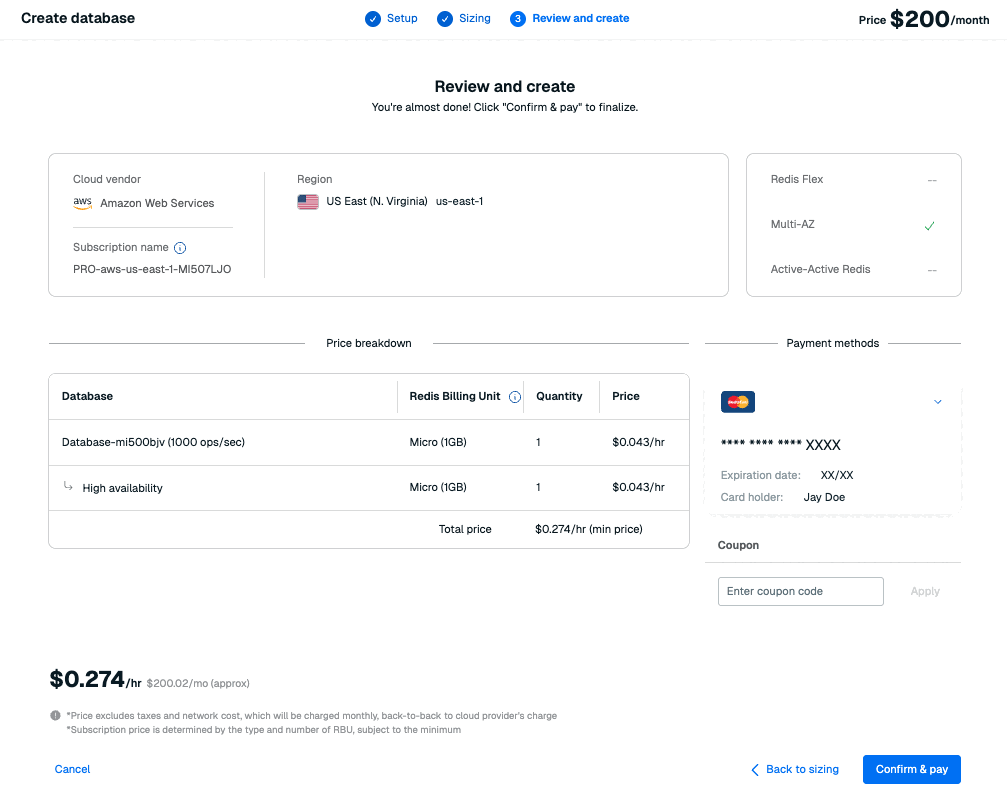\n\nRedis breaks down your databases to Redis Billing Units (RBUs), each with their own size and throughput requirements. For more info, see [Billing unit types](#billing-unit-types).\n\nThe **Payment methods** section of this tab shows which payment method you're using for this database. Select the arrow on the top right of this section to view all available payment methods.\n\n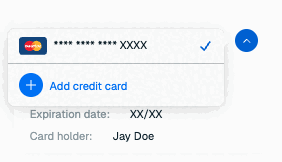\n\nIf you have not added a payment method or want to add a new payment method, select **Add credit card** to add a new credit card.\n\nIf you have not already added a business address to your account, you must enter one. Redis uses your business address for communication, invoicing, and tax purposes.\n\n\n\nIf you already have a business address, you don't need to enter one here. See [Account settings](https://redis.io/docs/latest/operate/rc/accounts/account-settings) to learn how to update your business address.\n\n\n\nIf the card's billing address is the same as your account's business address, select **Same as business address** to fill the billing address with your business address details.\n\nSelect **Back to Sizing** to make changes or **Confirm & Pay** to create your databases.\n\n\n\nNote that databases are created in the background. While they are provisioning, you aren't allowed to make changes. This process generally takes 10-15 minutes.\n\nUse the **Database list** to check the status of your databases."
},
{
"id": "billing-unit-types",
"title": "Billing unit types",
"role": "content",
"text": "The Redis Billing Unit types associated with your Pro subscription depend on your database memory size and throughput requirements.\n\n| Billing unit type | Capacity (Memory/Throughput) |\n|:------------|:----------|\n| Pico | 100MB / 100 ops/sec |\n| Nano | 500MB / 500 ops/sec |\n| Micro | 1GB / 1K ops/sec |\n| High-throughput | 2.5GB / 25K ops/sec |\n| Small | 12.5GB / 12.5K ops/sec |\n| Large | 25GB / 25K ops/sec |\n| Very large[1](#table-note-1) | 50GB / 5K ops/sec |\n| XLarge[2](#table-note-2) | 50GB / 10K ops/sec |\n| Flex-10[3](#table-note-3) | 50GB / 5K ops/sec |\n| Flex-20[3](#table-note-3) | 50GB / 10K ops/sec |\n| Flex-30[3](#table-note-3) | 50GB / 15K ops/sec |\n| Flex-40[3](#table-note-3) | 50GB / 20K ops/sec |\n| Flex-50[3](#table-note-3) | 50GB / 25K ops/sec |\n\n1. Used for databases with Auto Tiering before Redis 7.2.\n\n2. Used for hosted databases with Auto Tiering between Redis 7.2 and Redis 8.2. \n\n3. Used for Redis Flex databases for Redis 8.2 or later. Available Flex billing units depend on the RAM percentage you set for your database.\n\nPrices vary according to the cloud provider and region. Minimum prices apply."
}
],
"examples": []
}