# View and edit Redis Cloud Pro plan
```json metadata
{
"schema_version": 2,
"title": "View and edit Redis Cloud Pro plan",
"description": "",
"categories": ["docs","operate","rc"],
"tableOfContents": {"sections":[{"id":"databases-tab","title":"Databases tab"},{"id":"overview-tab","title":"Overview tab"},{"id":"data-integration-tab","title":"Data Integration tab"},{"id":"connectivity-tab","title":"Connectivity tab"},{"id":"security-tab","title":"Security tab"},{"id":"regions-tab","title":"Regions tab"}]}
,
"codeExamples": []
}
```
To view the details of a Redis Cloud Pro subscription:
1. Sign in to the [Redis Cloud console](https://cloud.redis.io/#) and select **Subscriptions**.
1. If you have more than one subscription, select the target subscription from the subscription list.
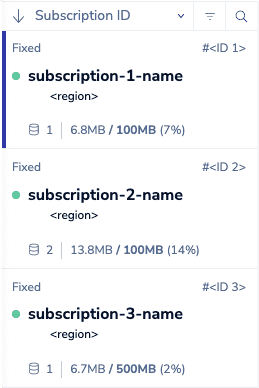
1. Your subscription details appear, along with a summary of your database details.
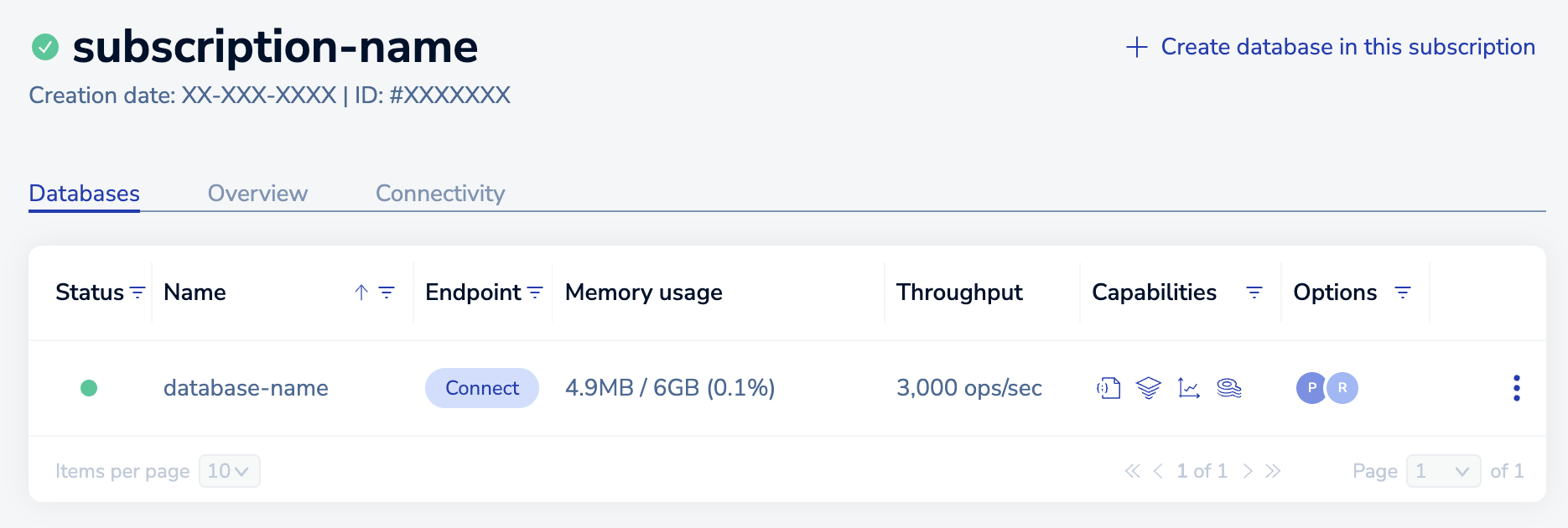
From here, you can:
- Select **Create database in this subscription** to [add a database to your subscription](https://redis.io/docs/latest/operate/rc/databases/create-database/create-pro-database-existing).

- View the Status icon to learn the status of your subscription. Active subscriptions display a green circle with a check mark. Pending subscriptions display an animated yellow circle.
 
Because subscriptions represent active deployments, there aren't many details you can change. If your needs change, [create a new subscription](https://redis.io/docs/latest/operate/rc/databases/create-database/create-pro-database-new) and then [migrate the existing data](https://redis.io/docs/latest/operate/rc/databases/migrate-databases) to the new databases.
In addition, you can view and edit the following subscription details:
1. The **Databases** tab lists the databases in your subscription and summarizes their settings.
2. The **Overview** tab displays subscription settings for your Redis Cloud Pro subscription.
3. The **Data integration** tab displays your Data integration workspace and pipelines.
4. The **Connectivity** tab lets you limit access to the subscription by defining a VPC peering or other connectivity options.
5. The **Security** tab lets you set security settings for the databases in your subscription.
6. The **Regions** tab lets you manage the regions in your Active-Active subscription (_Active-Active subscriptions only_).
The following sections provide more info.
## **Databases** tab
The **Databases** tab summarizes the databases in your subscription.

The following details are provided:
| Detail | Description |
|:---------|:--------------|
| **Status** | An icon indicating whether the database is active (a green circle) or pending (yellow circle)
  |
| **Name** | The database name |
| **Endpoint** | Use the **Copy** button to copy the endpoint URI to the Clipboard |
| **Memory** | Memory size of the database, showing the current size and the maximum size |
| **Throughput** | Maximum operations per second supported for the database |
| **Capabilities** | Identifies advanced capabilities attached to the database |
| **Options** | Icons showing options associated with the database |
To view full details of a database, click its name in the list.
## **Overview** tab
The **Overview** summarizes the options used to create the subscription.
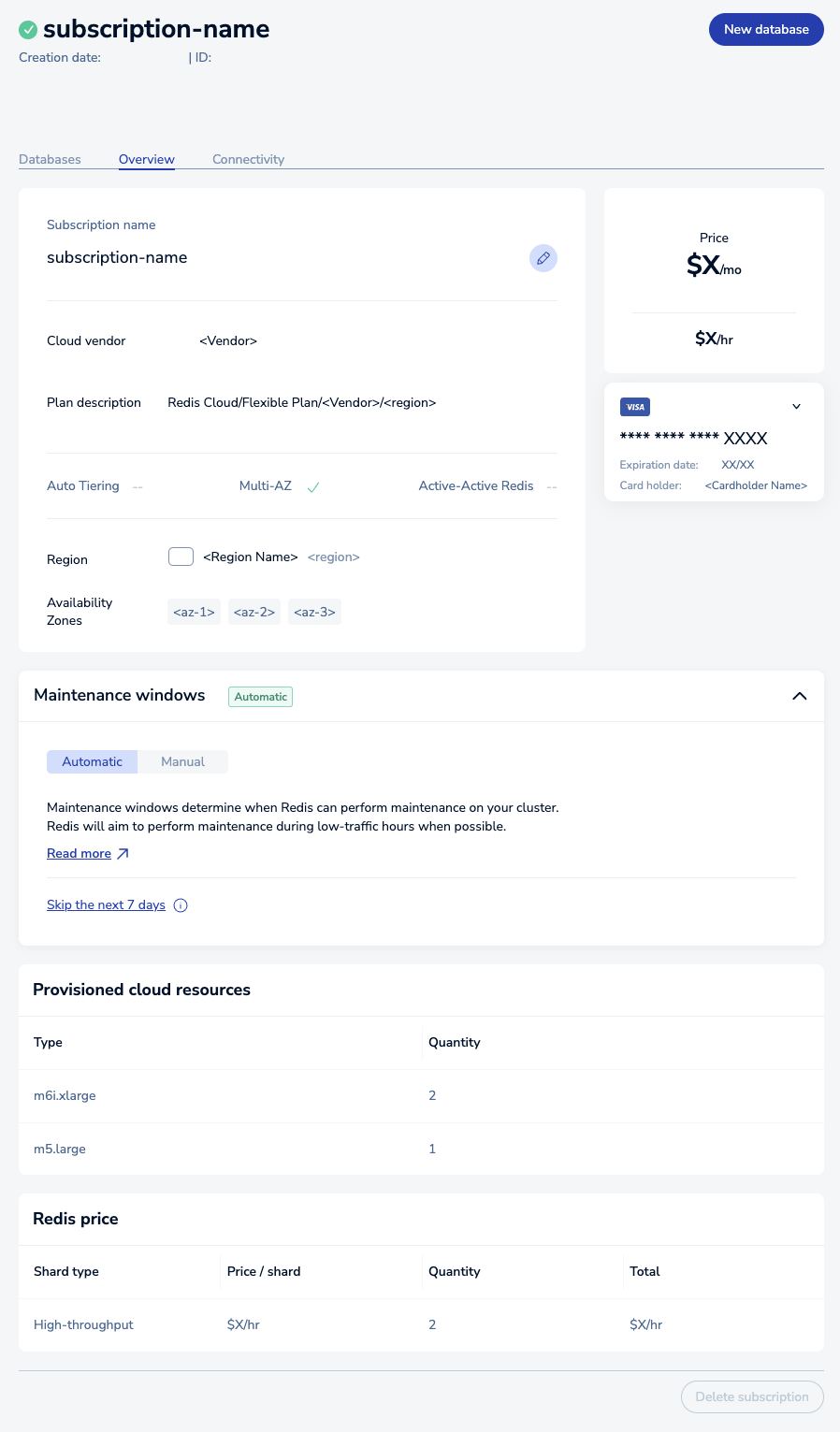
- The general settings panel describes the cloud vendor, region, and high-availability settings for your subscription.
Select **Edit** to change the name of the subscription.

| Setting | Description |
|:---------|:--------------|
| **Cloud vendor** | Your subscription cloud vendor |
| **Plan description** | Brief summary of subscription, including the plan type, cloud provider, and region |
| **Auto Tiering** | Checked when Auto Tiering is enabled |
| **Multi-AZ** | Checked when multiple availability zones are enabled |
| **Active-Active Redis** | Checked when Active-Active Redis is enabled for your subscription |
| **Region** | Describes the region your subscription is deployed to |
| **Availability Zones** | The availability zones your subscription is deployed in (Visible if you selected availability zones on creation) |
| **AWS Resource tags** | The tags applied to your resources in your BYOC account. Select the **Edit** button to manage your resource tags. See [Resource tags](https://redis.io/docs/latest/operate/rc/subscriptions/bring-your-own-cloud/resource-tags) for more information.
(Available only if [Redis Cloud Bring your own Cloud](https://redis.io/docs/latest/operate/rc/subscriptions/bring-your-own-cloud) is enabled) |
- The **Price** panel shows the monthly cost of your Redis Cloud Pro subscription.
- The **Payment Method** panel shows the current payment details.
Select the **Edit payment method** button to change the credit card associated with this subscription.

Select **Add credit card** to add a new credit card.
- The **Maintenance Window** panel shows your current [maintenance window settings](https://redis.io/docs/latest/operate/rc/subscriptions/maintenance/set-maintenance-windows).
See [Maintenance](https://redis.io/docs/latest/operate/rc/subscriptions/maintenance) for more information about subscription maintenance on Redis Cloud.
- The **Provisioned cloud resources** panel shows the storage resources used by your subscription.
If your subscription is attached to a cloud account, the details appear in the panel header.
- The **Redis price** panel breaks down your subscription price.
## **Data Integration** tab
The **Data integration** tab displays your Data integration workspace and pipelines. See [Data integration](https://redis.io/docs/latest/operate/rc/rdi) for more information.
## **Connectivity** tab
The **Connectivity** tabs helps secure your subscription.
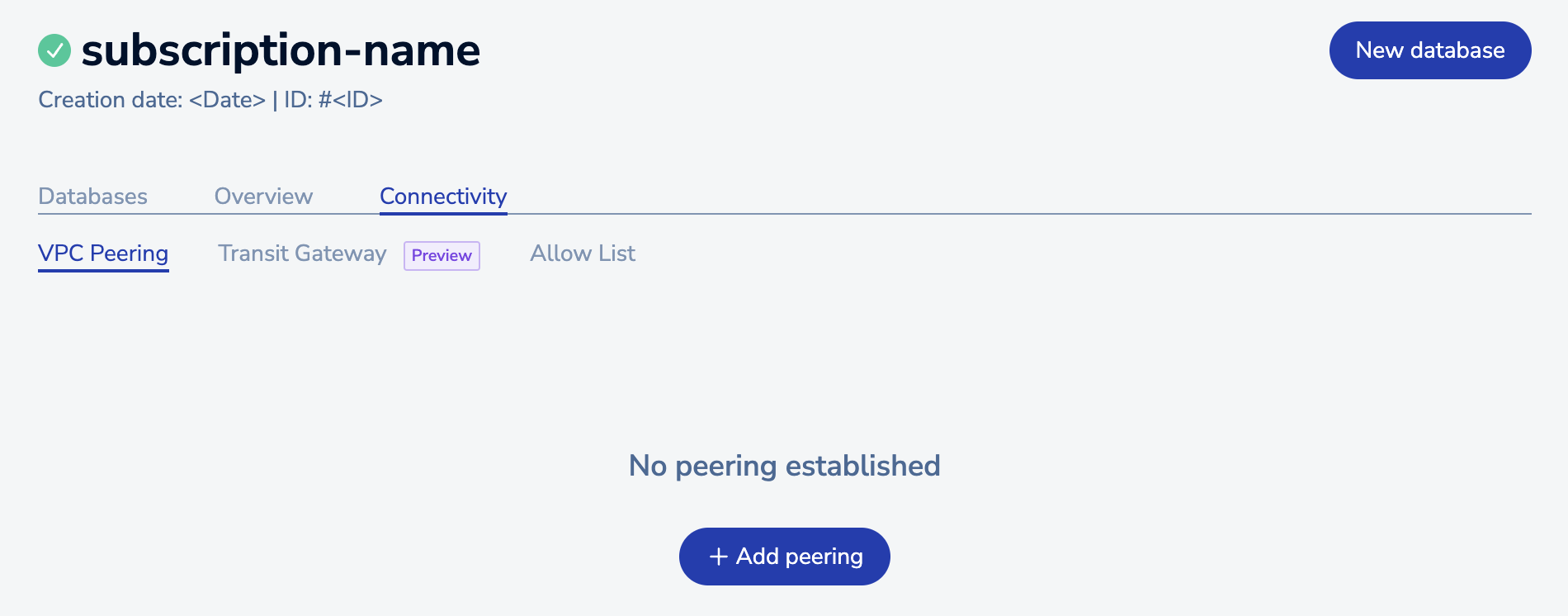
Here, you can:
- Set up a [VPC peering](https://redis.io/docs/latest/operate/rc/security/vpc-peering) relationship between the virtual private cloud (VPC) hosting your subscription and another VPC.
- Set up a [CIDR allow list](https://redis.io/docs/latest/operate/rc/subscriptions/bring-your-own-cloud/subscription-whitelist) containing IP addresses or security groups permitted to access your subscription (_[Bring your own Cloud](https://redis.io/docs/latest/operate/rc/subscriptions/bring-your-own-cloud) only_).
- Set up [Private Service Connect](https://redis.io/docs/latest/operate/rc/security/private-service-connect) (*Google Cloud only*), [Transit Gateway](https://redis.io/docs/latest/operate/rc/security/aws-transit-gateway) (*AWS only*), or [AWS PrivateLink](https://redis.io/docs/latest/operate/rc/security/aws-privatelink) (*AWS only*).
See the individual links to learn more.
## **Security** tab
The **Security** tab lets you set security settings for the databases in your subscription.
Here, you can [block public endpoints](https://redis.io/docs/latest/operate/rc/security/database-security/block-public-endpoints) for all databases in the subscription.
## **Regions** tab
The **Regions** tab is only available for Active-Active subscriptions. It lets you manage the regions in your Active-Active subscription.
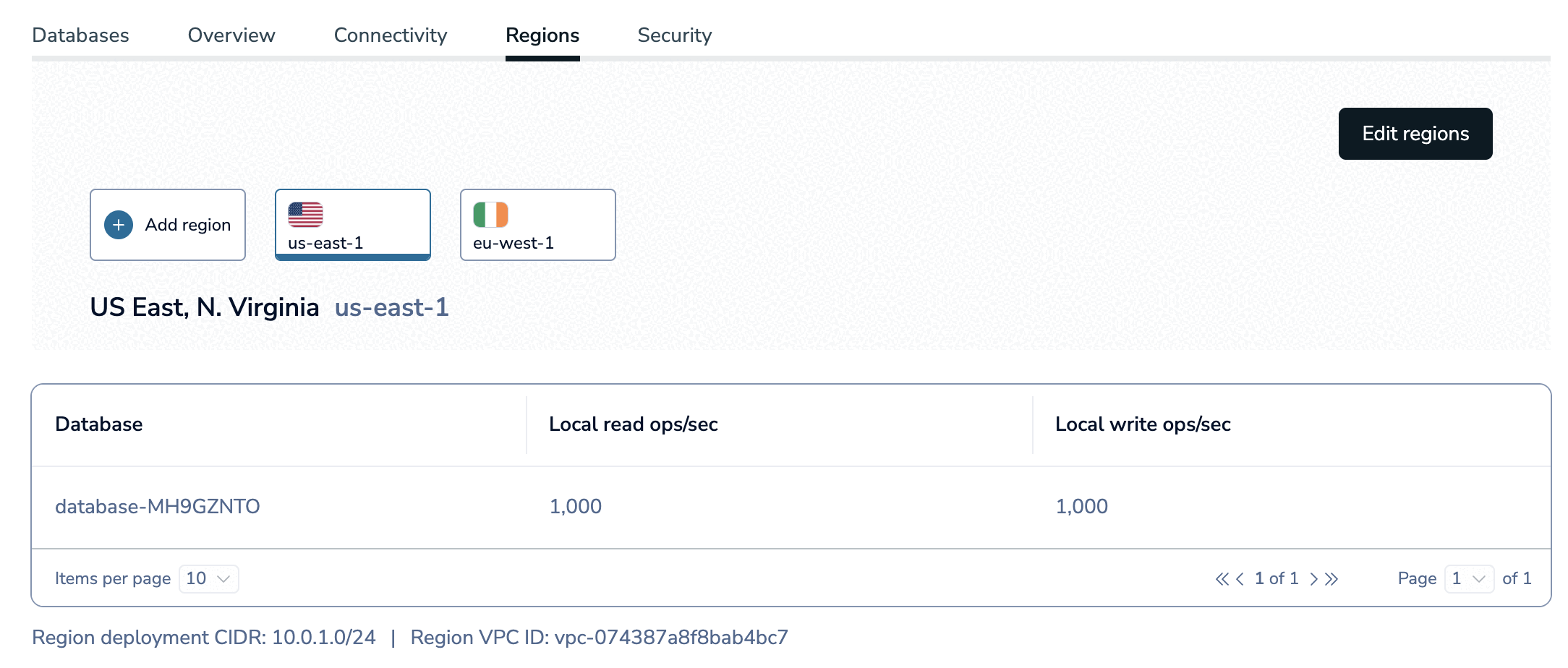
See [Manage regions for an Active-Active database](https://redis.io/docs/latest/operate/rc/databases/active-active/manage-regions) for more information.