# Enable TLS
```json metadata
{
"schema_version": 2,
"title": "Enable TLS",
"description": "Shows how to enable TLS.",
"categories": ["docs","operate","rs"],
"tableOfContents": {"sections":[{"children":[{"id":"enable-mutual-tls","title":"Enable mutual TLS"},{"id":"validate-client-certificate-expiration","title":"Validate client certificate expiration"},{"id":"connect-over-tls","title":"Connect over TLS"}],"id":"client","title":"Enable TLS for client connections"},{"children":[{"id":"retrieve-syncer-certificates","title":"Retrieve syncer certificates"},{"id":"configure-tls-certificates-for-active-active","title":"Configure TLS certificates for Active-Active"},{"id":"configure-tls-on-all-participating-clusters","title":"Configure TLS on all participating clusters"}],"id":"enable-tls-for-active-active-cluster-connections","title":"Enable TLS for Active-Active cluster connections"},{"id":"enable-tls-for-replica-of-cluster-connections","title":"Enable TLS for Replica Of cluster connections"}]}
,
"codeExamples": []
}
```
You can use TLS authentication for one or more of the following types of communication:
- Communication from clients (applications) to your database
- Communication from your database to other clusters for replication using [Replica Of](https://redis.io/docs/latest/operate/rs/databases/import-export/replica-of)
- Communication to and from your database to other clusters for synchronization using [Active-Active](https://redis.io/docs/latest/operate/rs/databases/active-active)
> [!NOTE]
> When you enable or turn off TLS, the change applies to new connections but does not affect existing connections. You must update TLS parameters in the client's connection configuration, then clients must close existing connections and reconnect to apply the change.
## Enable TLS for client connections {#client}
To enable TLS for client connections:
1. From your database's **Security** tab, select **Edit**.
1. In the **TLS - Transport Layer Security for secure connections** section, make sure the checkbox is selected.
1. In the **Apply TLS for** section, select **Clients and databases + Between databases**.
1. Select **Save**.
### Enable mutual TLS
Optionally, you can enable mutual TLS for client connections:
1. Select **Mutual TLS (Client authentication)**.
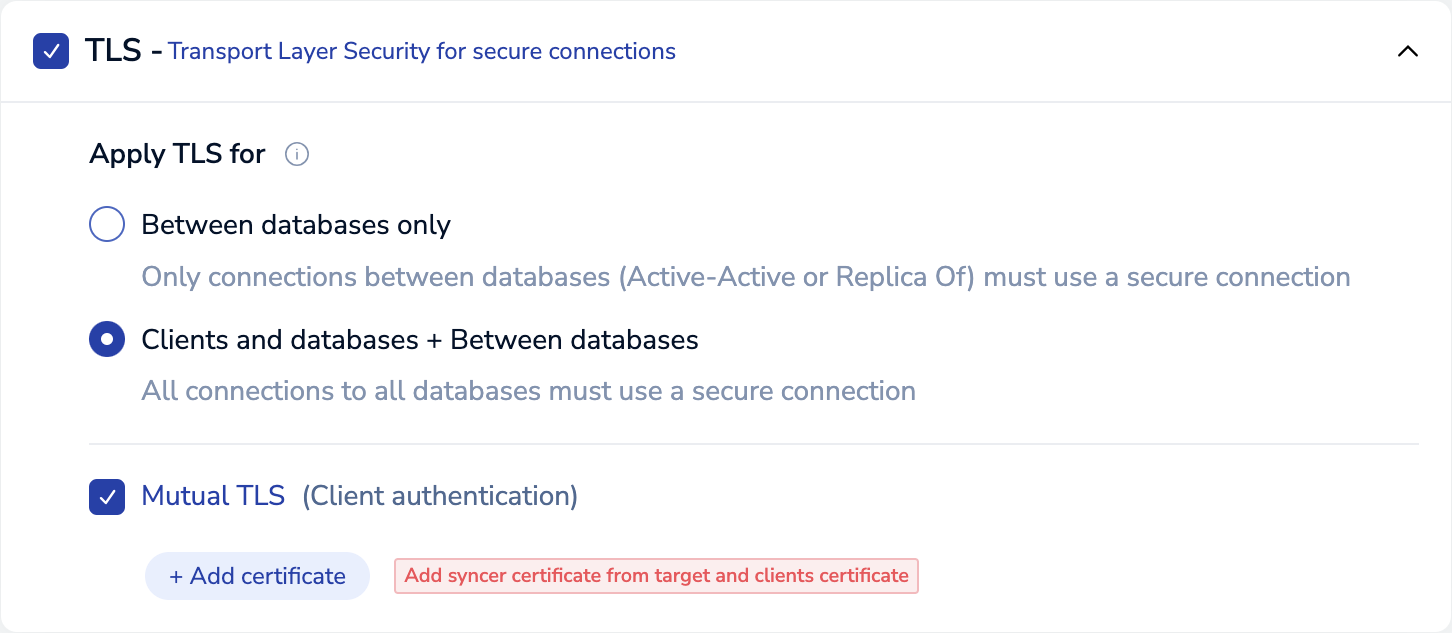
1. For each client certificate, select **+ Add certificate**, paste or upload the client certificate, then select **Done**.
If your database uses Replica Of or Active-Active replication, you also need to add the syncer certificates for the participating clusters. See [Enable TLS for Replica Of cluster connections](#enable-tls-for-replica-of-cluster-connections) or [Enable TLS for Active-Active cluster connections](#enable-tls-for-active-active-cluster-connections) for instructions.
1. You can configure **Additional certificate validations** to further limit connections to clients with valid certificates.
Additional certificate validations occur only when loading a [certificate chain](https://en.wikipedia.org/wiki/Chain_of_trust#Computer_security) that includes the [root certificate](https://en.wikipedia.org/wiki/Root_certificate) and intermediate [CA](https://en.wikipedia.org/wiki/Certificate_authority) certificate but does not include a leaf (end-entity) certificate. If you include a leaf certificate, mutual client authentication skips any additional certificate validations.
1. Select a certificate validation option.
| Validation option | Description |
|-------------------|-------------|
| _No validation_ | Authenticates clients with valid certificates. No additional validations are enforced. |
| _By Subject Alternative Name_ | A client certificate is valid only if its Subject Alternative Name (SAN) DNS entries or Common Name (CN) match an entry in the list of valid subjects. Ignores other [`Subject`](https://datatracker.ietf.org/doc/html/rfc5280#section-4.1.2.6) attributes. |
| _By full Subject Name_ | A client certificate is valid only if its [`Subject`](https://datatracker.ietf.org/doc/html/rfc5280#section-4.1.2.6) attributes match an entry in the list of valid subjects. |
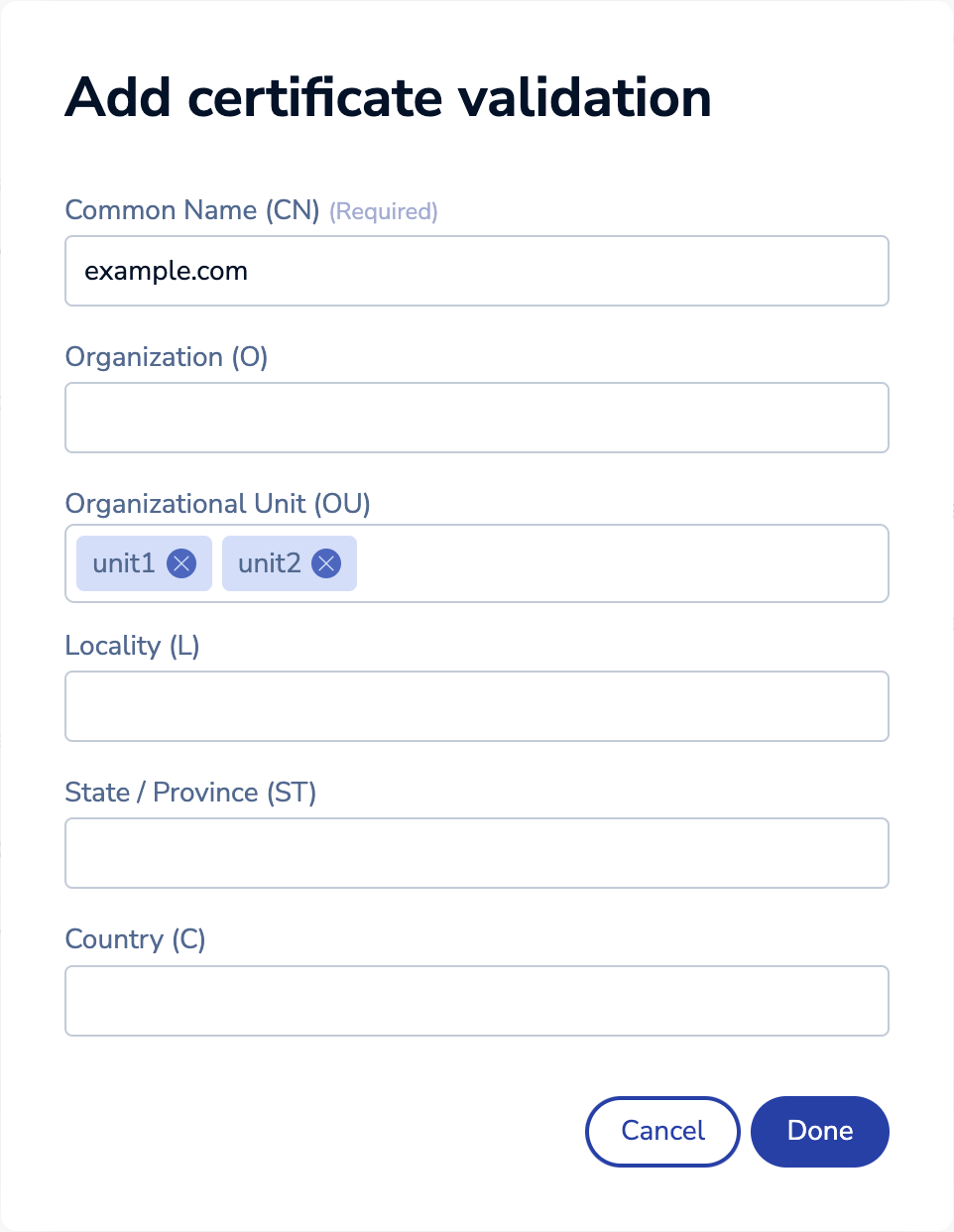
1. If you selected **No validation**, you can skip this step. Otherwise, select **+ Add validation** to create a new entry and then enter valid [`Subject`](https://datatracker.ietf.org/doc/html/rfc5280#section-4.1.2.6) attributes for your client certificates. All `Subject` attributes are case-sensitive.
| Subject attribute
(case-sensitive) | Description |
|-------------------|-------------|
| _Common Name (CN)_ | Name of the client authenticated by the certificate (_required_) |
| _Organization (O)_ | The client's organization or company name |
| _Organizational Unit (OU)_ | Name of the unit or department within the organization |
| _Locality (L)_ | The organization's city |
| _State / Province (ST)_ | The organization's state or province |
| _Country (C)_ | 2-letter code that represents the organization's country |
You can only enter a single value for each field, except for the _Organizational Unit (OU)_ field. If your client certificate has a `Subject` with multiple _Organizational Unit (OU)_ values, press the `Enter` or `Return` key after entering each value to add multiple Organizational Units.
**Breaking change:** If you use the [REST API](https://redis.io/docs/latest/operate/rs/references/rest-api) instead of the Cluster Manager UI to configure additional certificate validations, note that `authorized_names` is deprecated as of Redis Enterprise v6.4.2. Use `authorized_subjects` instead. See the [BDB object reference](https://redis.io/docs/latest/operate/rs/references/rest-api/objects/bdb) for more details.
1. Select **Save**.
### Validate client certificate expiration
By default, Redis Enterprise Software validates client certificate expiration dates. You can use [`rladmin tune db`](https://redis.io/docs/latest/operate/rs/references/cli-utilities/rladmin/tune#tune-db) to turn off this behavior.
```sh
rladmin tune db < db:id | name > mtls_allow_outdated_certs { enabled | disabled }
```
### Connect over TLS
To connect to a Redis Enterprise Software database over TLS using [`redis-cli`](https://redis.io/docs/latest/operate/rs/references/cli-utilities/redis-cli):
1. Download or copy the server (or proxy) certificate from the Cluster Manager UI (**Cluster > Security > Certificates > Server authentication**) or from a cluster node (`/etc/opt/redislabs/proxy_cert.pem`).
1. Copy the certificate to each client machine.
1. If your database doesn't require client authentication with mutual TLS, provide the server certificate when you connect:
```sh
redis-cli -h -p --tls --cacert proxy_cert.pem
```
1. If your database requires client authentication with mutual TLS, provide your client's private and public keys along with the Redis Enterprise Software server certificate when you connect:
```sh
redis-cli -h -p --tls --cacert proxy_cert.pem \
--cert redis_user.crt --key redis_user_private.key
```
## Enable TLS for Active-Active cluster connections
To enable TLS for Active-Active cluster connections:
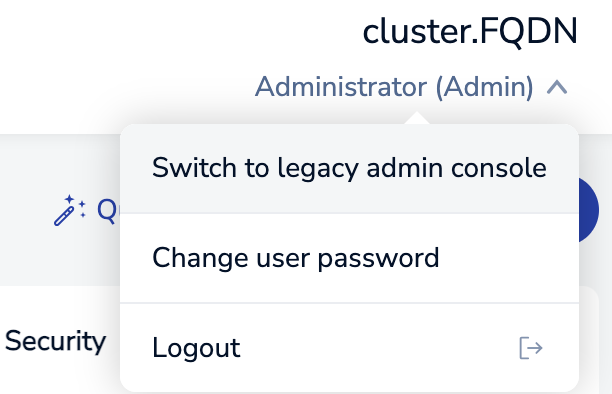
1. If you are using the new Cluster Manager UI, switch to the legacy admin console.
1. [Retrieve syncer certificates.](#retrieve-syncer-certificates)
1. [Configure TLS certificates for Active-Active.](#configure-tls-certificates-for-active-active)
1. [Configure TLS on all participating clusters.](#configure-tls-on-all-participating-clusters)
> [!NOTE]
> You cannot enable or turn off TLS after the Active-Active database is created, but you can change the TLS configuration.
### Retrieve syncer certificates
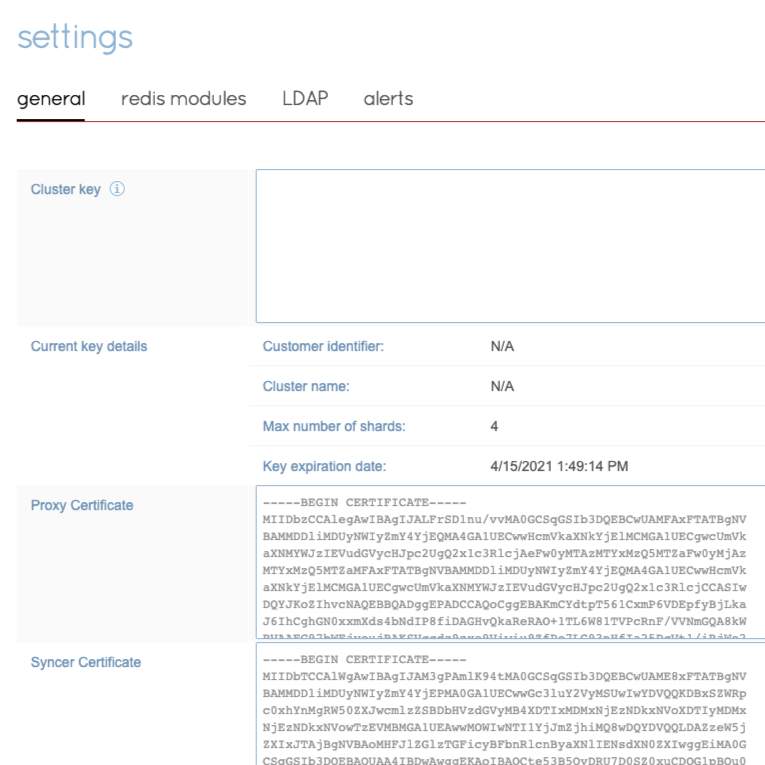
For each participating cluster, copy the syncer certificate from the **general** settings tab.
### Configure TLS certificates for Active-Active
1. During database creation (see [Create an Active-Active Geo-Replicated Database](https://redis.io/docs/latest/operate/rs/databases/active-active/create), select **Edit** from the **configuration** tab.
1. Enable **TLS**.
- **Enforce client authentication** is selected by default. If you clear this option, you will still enforce encryption, but TLS client authentication will be deactivated.
1. Select **Require TLS for CRDB communication only** from the dropdown menu.

1. Select **Add** 
1. Paste a syncer certificate into the text box.
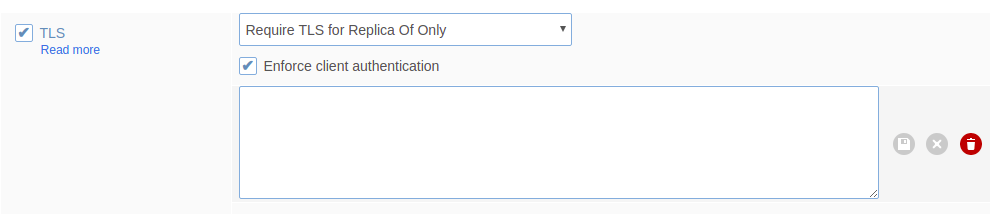
1. Save the syncer certificate. 
1. Repeat this process, adding the syncer certificate for each participating cluster.
1. Optional: If also you want to require TLS for client connections, select **Require TLS for All Communications** from the dropdown and add client certificates as well.
1. Select **Update** at the bottom of the screen to save your configuration.
### Configure TLS on all participating clusters
Repeat this process on all participating clusters.
To enforce TLS authentication, Active-Active databases require syncer certificates for each cluster connection. If every participating cluster doesn't have a syncer certificate for every other participating cluster, synchronization will fail.
## Enable TLS for Replica Of cluster connections
To enable TLS for Replica Of cluster connections:
1. For each cluster hosting a replica:
1. Go to **Cluster > Security > Certificates**.
1. Expand the **Replica Of and Active-Active authentication (Syncer certificate)** section.
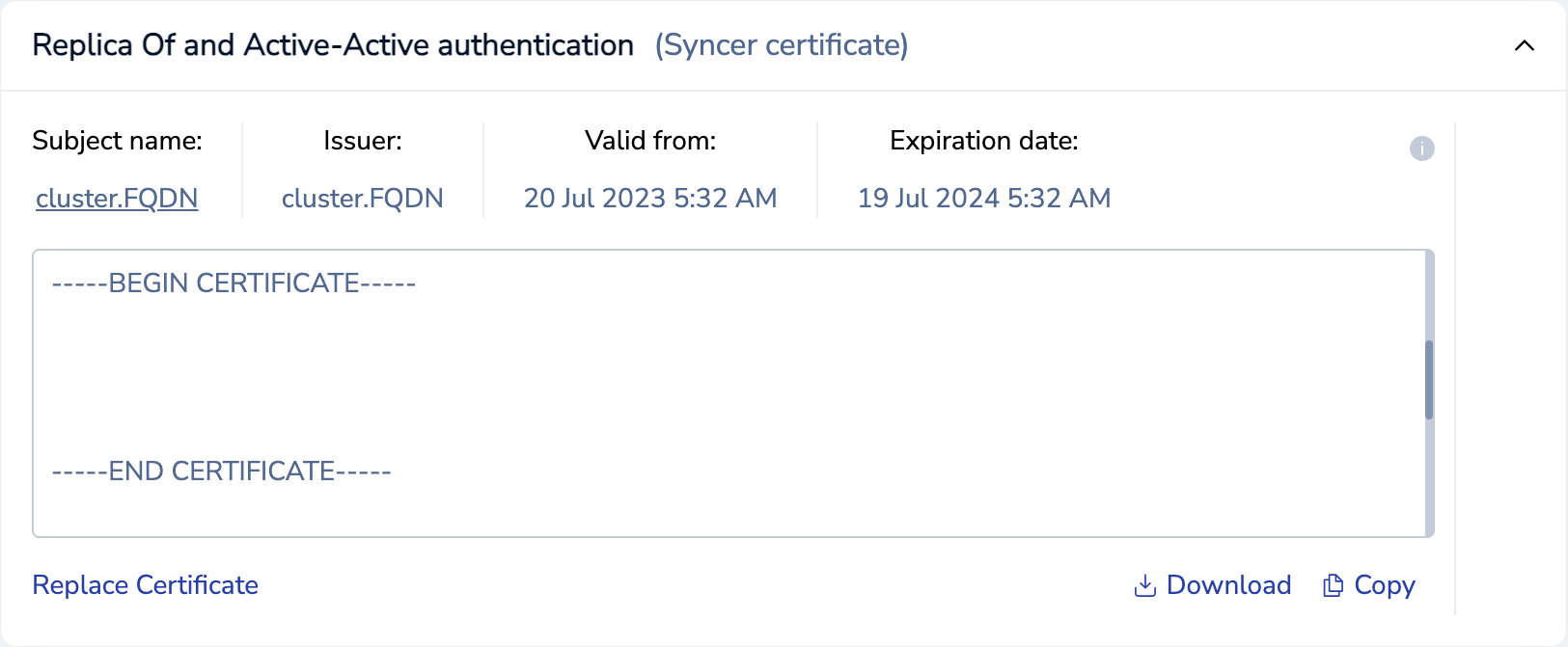
1. Download or copy the syncer certificate.
1. From the **Security** tab of the Replica Of source database, select **Edit**.
1. In the **TLS - Transport Layer Security for secure connections** section, make sure the checkbox is selected.
1. In the **Apply TLS for** section, select **Between databases only**.
1. Select **Mutual TLS (Client authentication)**.
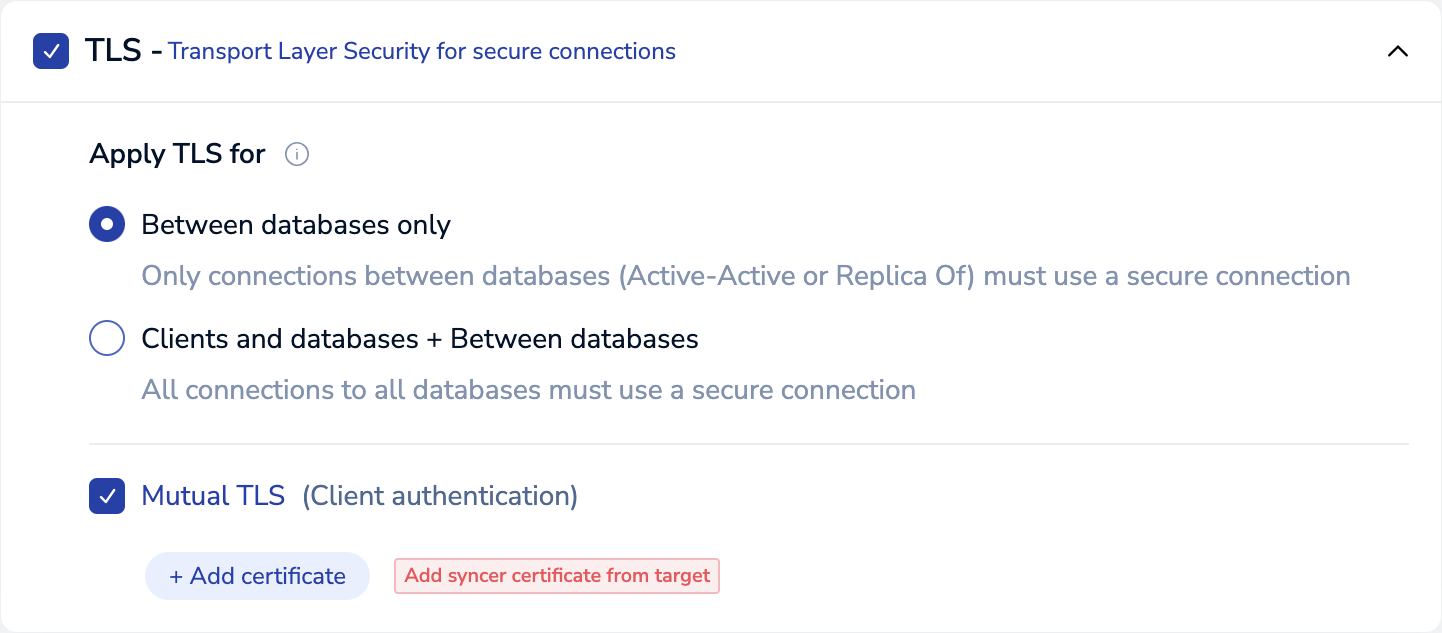
1. Select **+ Add certificate**, paste or upload the syncer certificate, then select **Done**.
Repeat this process, adding the syncer certificate for each cluster hosting a replica of this database.
1. _(Optional)_ To require TLS for client connections, change **Apply TLS for** to **Clients and databases + Between databases** and add client certificates.
1. Select **Save**.