# Create roles with cluster access only
```json metadata
{
"schema_version": 2,
"title": "Create roles with cluster access only",
"description": "Create roles with cluster access only.",
"categories": ["docs","operate","rs"],
"tableOfContents": {"sections":[{"id":"default-management-roles","title":"Default management roles"},{"id":"cluster-manager-ui-permissions","title":"Cluster Manager UI permissions"},{"id":"create-cluster-role","title":"Create roles for cluster access"},{"id":"scope-a-role-to-specific-databases","title":"Scope a role to specific databases"}]}
,
"codeExamples": []
}
```
Roles with cluster access allow access to the Cluster Management UI and REST API.
## Default management roles
Redis Software includes five predefined roles that determine a user's level of access to the Cluster Manager UI and [REST API](https://redis.io/docs/latest/operate/rs/references/rest-api).
1. **DB Viewer** - Read database settings
1. **DB Member** - Administer databases
1. **Cluster Viewer** - Read cluster settings
1. **Cluster Member** - Administer the cluster
1. **User Manager** - Administer users
1. **Admin** - Full cluster access
1. **None** - For data access only - cannot access the Cluster Manager UI or use the REST API
For more details about the privileges granted by each of these roles, see [Cluster Manager UI permissions](#cluster-manager-ui-permissions) or [REST API permissions](https://redis.io/docs/latest/operate/rs/references/rest-api/permissions).
## Cluster Manager UI permissions
Here's a summary of the Cluster Manager UI actions permitted by each default management role:
| Action | DB Viewer | DB Member | Cluster Viewer | Cluster Member | Admin | User Manager |
|--------|:---------:|:---------:|:--------------:|:-----------:|:------:|:------:|
| Create, edit, delete users and LDAP mappings | ❌ No | ❌ No | ❌ No | ❌ No | ✅ Yes | ✅ Yes |
| Create support package | ❌ No | ✅ Yes | ❌ No | ✅ Yes | ✅ Yes | ❌ No |
| Edit database configuration | ❌ No | ✅ Yes | ❌ No | ✅ Yes | ✅ Yes | ❌ No |
| Reset slow log | ❌ No | ✅ Yes | ❌ No | ✅ Yes | ✅ Yes | ❌ No |
| View cluster configuration | ❌ No | ❌ No | ✅ Yes | ✅ Yes | ✅ Yes | ✅ Yes |
| View cluster logs | ❌ No | ✅ Yes | ✅ Yes | ✅ Yes | ✅ Yes
| ✅ Yes
|
| View cluster metrics | ❌ No | ❌ No | ✅ Yes | ✅ Yes | ✅ Yes | ✅ Yes |
| View database configuration | ✅ Yes | ✅ Yes | ✅ Yes | ✅ Yes | ✅ Yes | ✅ Yes |
| View database metrics | ✅ Yes | ✅ Yes | ✅ Yes | ✅ Yes | ✅ Yes | ✅ Yes |
| View node configuration | ❌ No | ❌ No | ✅ Yes | ✅ Yes | ✅ Yes | ✅ Yes |
| View node metrics | ❌ No | ❌ No | ✅ Yes | ✅ Yes | ✅ Yes | ✅ Yes |
| View Redis database password | ❌ No | ✅ Yes | ❌ No | ✅ Yes | ✅ Yes | ✅ Yes |
| View slow log | ❌ No | ✅ Yes | ❌ No | ✅ Yes | ✅ Yes | ❌ No |
| View and edit cluster settings | ❌ No | ❌ No | ❌ No | ❌ No | ✅ Yes | ❌ No |
## Create roles for cluster access {#create-cluster-role}
You can use the [Cluster Manager UI](#create-roles-ui) or the [REST API](#define-roles-rest-api) to create a role that grants cluster access but does not grant access to any databases.
**Cluster Manager UI:**
To create a role that grants cluster access using the Cluster Manager UI:
1. From **Access Control** > **Roles**, you can:
- Select a role from the list of existing roles to edit it.
- Click **+ Add role** to create a new role.

1. Enter a descriptive name for the role.
1. Choose a **Management role** to determine cluster management permissions.
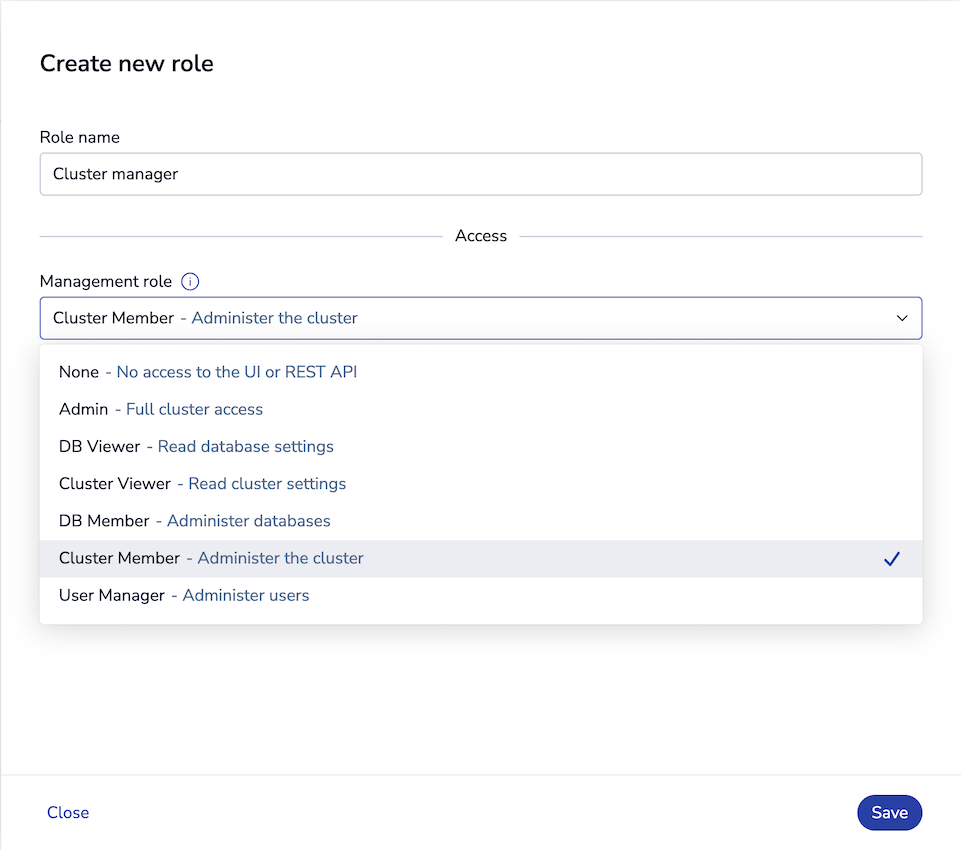
1. To prevent database access when using this role, do not add any ACLs.
1. Click **Save**.
**REST API:**
To [create a role](https://redis.io/docs/latest/operate/rs/references/rest-api/requests/roles#post-role) that grants cluster access using the REST API:
```sh
POST /v1/roles
{
"name": "",
"management": "db_viewer | db_member | cluster_viewer | cluster_member | user_manager | admin"
}
```
You can [assign the new role to users](https://redis.io/docs/latest/operate/rs/security/access-control/create-users#assign-roles-to-users) to grant cluster access.
## Scope a role to specific databases
By default, the `db_member` and `db_viewer` [management roles](#default-management-roles) grant access to every database in the cluster. In a shared or multi-tenant cluster, you can scope one of these roles to specific databases so that users assigned the role can view or manage only those databases.
To scope a role, add the `resources` field when you [create](https://redis.io/docs/latest/operate/rs/references/rest-api/requests/roles#post-role) or [update](https://redis.io/docs/latest/operate/rs/references/rest-api/requests/roles#put-role) a role with the REST API. The `resources` field is a list of resource scopes; each scope has a `type` (currently only `db`) and a `uids` array of the database IDs the role applies to.
For example, the following request creates a `db_member` role scoped to databases `1` and `2`:
```sh
POST /v1/roles
{
"name": "team-a-dbs",
"management": "db_member",
"resources": [
{ "type": "db", "uids": ["1", "2"] }
]
}
```
When you [assign this role to a user](https://redis.io/docs/latest/operate/rs/security/access-control/create-users#assign-roles-to-users):
- The user can view or manage only the databases listed in the role's `resources` scope.
- In the Cluster Manager UI and REST API responses, the user sees only their authorized databases, including in database lists, metrics, alerts, and event logs. Other databases are hidden.
To return a role to cluster-wide scope, update it with an empty `resources` list or omit the field. Roles without a `resources` scope apply to all databases, so existing roles are unaffected.
> [!NOTE]
> Database scoping applies to the `db_member` and `db_viewer` management roles.