Create and manage Data Integration workspace
Create and manage the infrastructure for your Data Integration pipelines.
| Redis Cloud |
|---|
Before you can create your first Data Integration pipeline for a Redis Cloud subscription, you must first deploy the cloud infrastructure needed to host the pipeline and run the workers associated with the pipeline. In Redis Cloud, this is called a Workspace. Each Pro subscription can have one Data integration workspace. You only need to set up the workspace once - any pipelines you create for your subscription will run on the workspace until you delete it. You won't be charged for a workspace until you start running your Data Integration pipeline.
Create a Data Integration workspace
For multiple source databases or Redis subscriptions, see Plan source connectivity. It explains which endpoint services you can reuse and which connections you configure for each workspace.
To create a Data Integration workspace for an existing Pro subscription:
-
In the Redis Cloud console, select Data Integration.
-
Select Create workspace if you have no workspaces yet.

If you already have a workspace, select New workspace.

You can also open Data Integration from a subscription or database page. Select Create workspace to use that subscription.
-
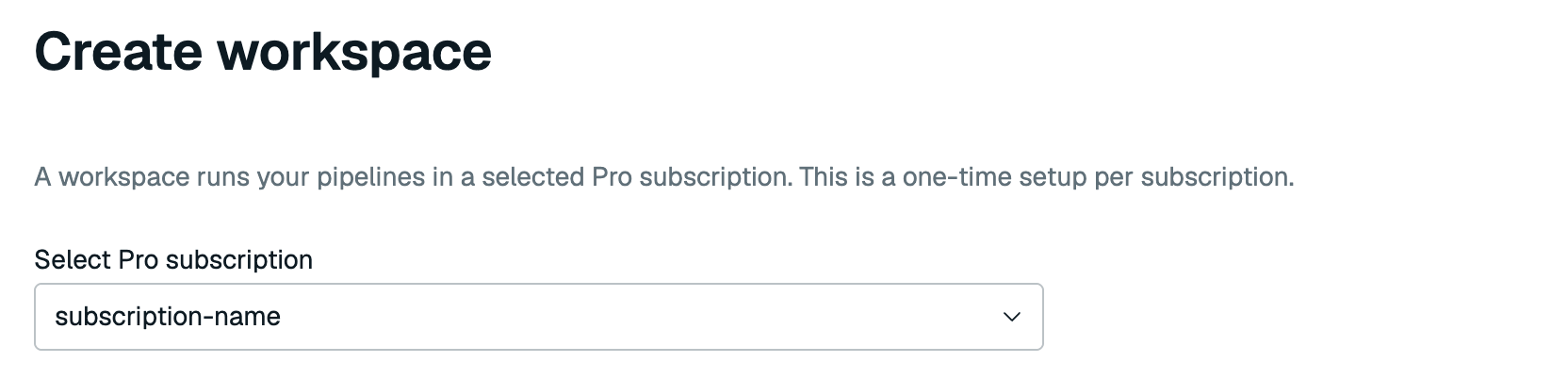
Select your Pro subscription if it is not already selected.
-
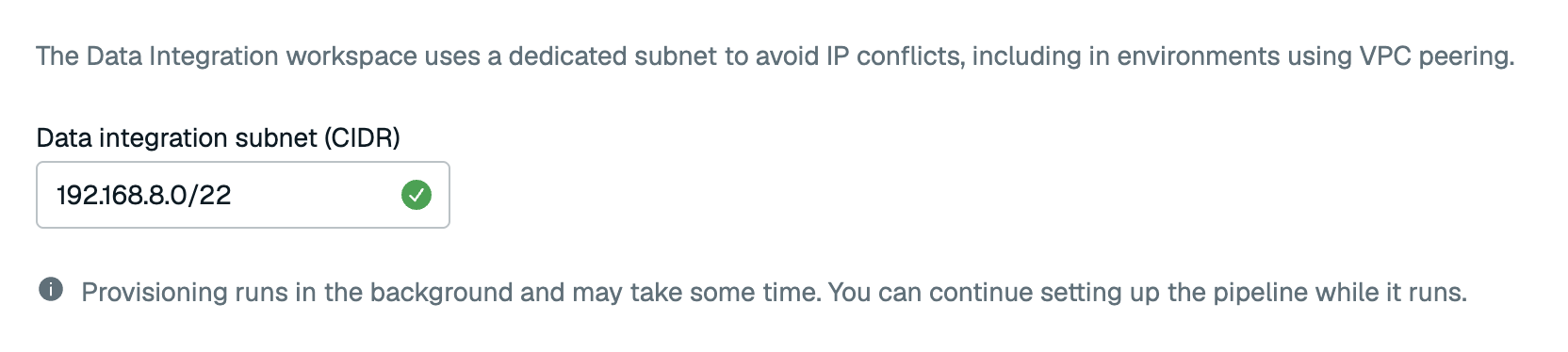
Review Data Integration subnet (CIDR). The console suggests a dedicated
/22Classless Inter-Domain Routing (CIDR) range for the workspace.Plan network capacity for all pipelines before you create the workspace. Choose a
/21or larger range if you plan more than 5 sources or more than 5 processor replicas in total. These counts are a conservative planning trigger, not a capacity limit. You cannot enlarge the workspace CIDR after creation.For Amazon Web Services (AWS), the RDI workspace CIDR must:
- Be in the same RFC 1918 private address range as the subscription virtual private cloud (VPC)'s primary CIDR:
10.0.0.0/8,172.16.0.0/12, or192.168.0.0/16. - Not overlap with existing subscription, peering, transit gateway (TGW), application, database, or RDI workspace CIDR ranges.
For example, a subscription VPC has the primary CIDR
10.238.252.0/24. The range192.168.0.0/22is invalid because it is in a different RFC 1918 range. An unused range such as10.239.0.0/22is valid.If the suggestion is missing or unsuitable, select another unused range. It must meet your capacity needs and use the same private address range. See VPC CIDR block association restrictions.
- Be in the same RFC 1918 private address range as the subscription virtual private cloud (VPC)'s primary CIDR:
-
Select Create workspace.
Redis Cloud creates the workspace in the background. Select Create pipeline to create your pipeline while it provisions. Select Create pipeline later to return to the Redis Cloud console.

View workspace status and details
You can view your workspace in one of the following ways:
- From the Redis Cloud console, go to the Data integration page, or
- From your subscription, select the Data Integration tab

There, you'll see your workspace and its pipelines. The Sources column lists each pipeline's source names and database types. A source with unfinished configuration is marked Pending setup. Open its draft to continue setup. To see your workspace details, including the deployment CIDR and region information, select Workspace actions > Workspace details.
Delete workspace
Make sure to delete your data pipeline before deleting your workspace.
To delete your workspace, select Workspace actions > Delete workspace from your workspace.